

Device details and connecting
Copy as MarkdownA click on a device in the device list opens its panel at the side of the page. The panel shows everything the server knows about the device, lets you change it, and connects you to it.
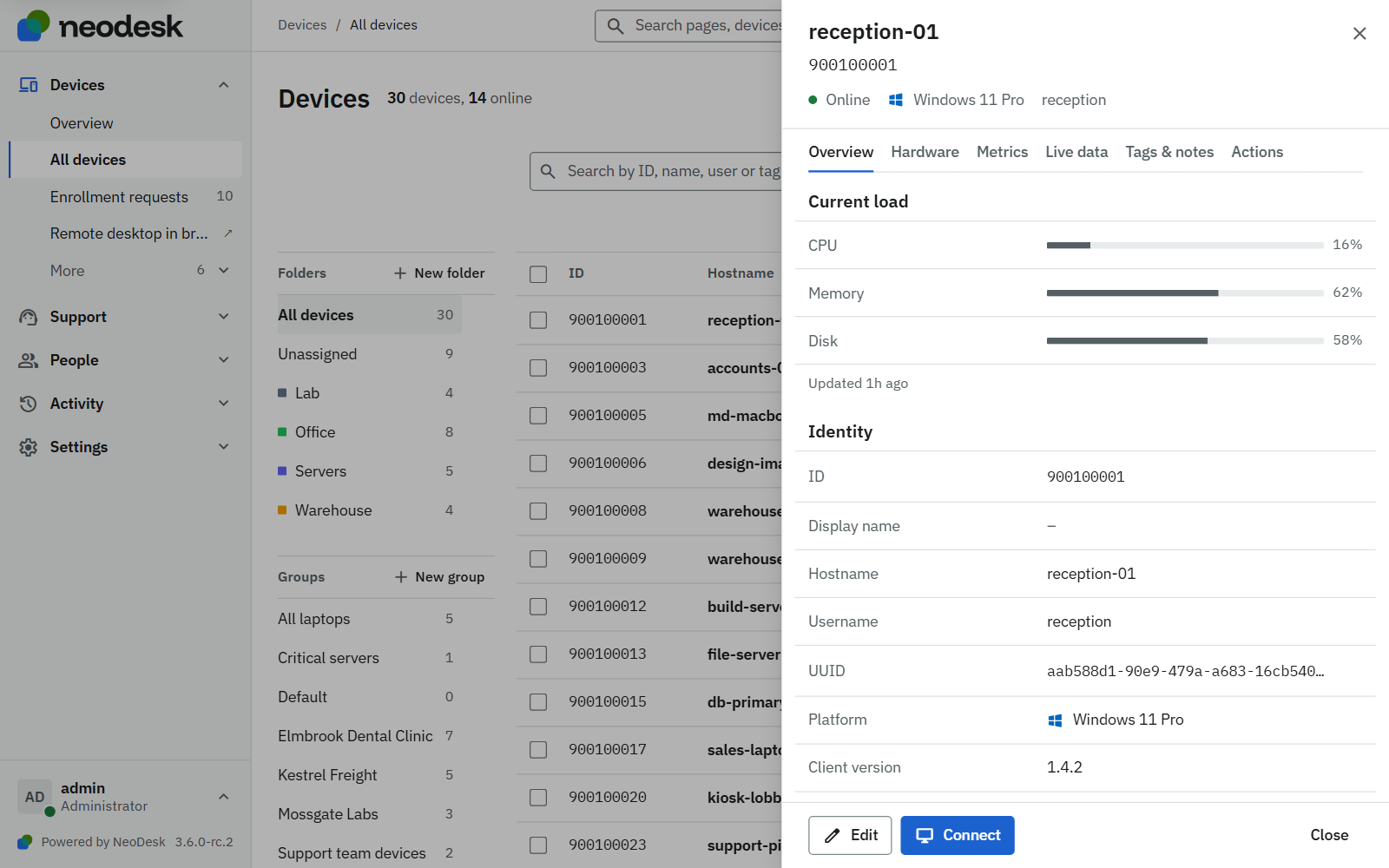
The header shows the device's name, its ID with a copy button, its status, its platform and the user signed in on the device. The footer holds Edit, Connect and Close. Escape closes the panel too.
While the panel is open, the address bar carries the device's ID (?open= followed by the ID), so you can bookmark or share a link that opens the same device. The panel loads the device again every 15 seconds while the tab is visible.
Tabs
The panel shows only the tabs that apply to the device:
| Tab | Shown for |
|---|---|
| Overview | Every device |
| Hardware and Metrics | Every device except RDP/VNC targets |
| Live data | Every device except RDP/VNC targets, the support agent and deleted devices |
| Tags & notes | Every device |
| Actions | When your account may do at least one thing with the device |
Overview
When the device is banned, a notice at the top says when and by whom, and the reason if one was given. When the computer came back with a new key, for example after a reinstall, a New key notice follows. After a refused invite it names the computer, its address, the time and the new key's fingerprint, and offers Approve new key to accounts with Approve enrollment; otherwise it says that the server doesn't accept the new key. See A reinstalled or reset computer. Then come these sections:
- Current load: CPU, memory and disk use as bars, when the device reports them.
- Identity: ID, Display name, Hostname, Username, Platform and, when the device sent them, its UUID, Client version and Capabilities.
- Connection: for an RDP/VNC target only, its technology, address, how the password is handled, TLS and whether it is enabled.
- Connection mode: only for clients that can switch between Normal and Incoming only. Pick the mode, give a reason (it goes into the audit log) and click Apply mode. The device switches the next time it checks in. For the support agent this section only says that it stays incoming-only.
- Network: IP address, Folder and Groups.
- Timestamps: First seen and Last seen, and Status tier when an online device's tier is Degraded or Critical.
Hardware
What the client reported about the machine: system, processor, memory, displays and encoding capabilities. For a device with the NeoDesk agent, its inventory report follows, with disks, network adapters and the installed programs, which you can search. Read again asks the device to send its hardware details again; it needs permission to edit devices.
If the device never reported anything, the tab says "No hardware information available".
Metrics
- Server metrics: a short summary.
- Usage history: a chart of CPU, memory and disk use from the heartbeats the device sends. A gap in the lines means no samples came in, usually because the device was off.
- Availability history: the status changes of one day as a band and a table, with Previous day and Next day. The server records these only while Availability history is turned on in Settings, General.
- Connection sessions: who connected to the device, when, from which IP address, whether the connection was Direct / punch or went through the Relay, and how long it lasted.
Live data
Views read from the agent on the device when you open them: Services, Processes, Events, Activity and Files. If the device is offline and sent the view before, it shows at once, under "The device is offline. This is what it sent last:" and the time. Otherwise the request waits until the device checks in again: the view says "Requested from the device" and shows the answer by itself once it arrives.
Starting and stopping services and ending processes need permission to connect to devices, and the Files view needs Files on NeoDesk agents. A person's client features Remote control and File transfer turn them off as well. See Users and roles.
Tags & notes
Tags change as soon as you add or remove one. Type a tag and press Enter or Add, or pick one that other devices use. Removing a tag here takes it off this device only. The note has its own Save button. Without permission to edit devices, both are read-only.
Actions
Everything your account may do with the device, as a list with one line on what each item does. The items are grouped:
- Connection: the ways to connect, see Connecting.
- Mesh agent: for devices that connect through a MeshAgent, tools such as Terminal, File browser, Run command, TCP port relay, UDP port relay and the power commands. See MeshAgent devices.
- Management: Edit, Manage groups, Change ID, Issue a new token, and Ban or Unban. See The row menu.
- Danger zone: Delete, which hides the device and keeps its ID, or deletes it for good. See Deleted devices.
For the support agent, which only accepts incoming connections, the tab shows what is available (basic statistics and remote desktop) instead of the management actions. For a deleted device it offers only Restore and Permanently delete device.
Editing a device
Edit in the footer turns the top of Overview into a form with Display name, Username, Note, Folder and Tags. The display name is shown in the list instead of the hostname; leave it empty to show the hostname. Save sends only what changed. Cancel leaves without saving; Escape asks first when something changed.
Edit in the row menu and in the Actions tab opens the same form. For an RDP/VNC target, Edit opens the target's form instead, with its address, sign-in and security settings.
Editing needs permission to edit devices. By default Super admin, Global admin and Remote operator accounts have it.
Connecting
Connect in the footer opens the device in the web viewer, in a new browser tab. If a viewer tab is already open, the device opens there as another tab instead. The row menu and the Actions tab offer more ways:
| Option | What it does | What it needs |
|---|---|---|
| Web remote (the Connect button) | Opens the device in the browser, without installing anything | An account that may connect to devices, and a desktop or tablet browser. See Remote desktop in the browser |
| Desktop client (Open in NeoDesk or Open in RustDesk in the row menu) | Opens a neodesk:// link with the device's ID, which starts the NeoDesk client on this computer, or a rustdesk:// link for stock RustDesk; see Links that open the app |
The NeoDesk client or RustDesk installed on this computer and set up for this server, see Connect a RustDesk client |
| CDAP snapshot viewer | Opens a viewer in a new tab that shows pictures of the screen instead of a live stream | A device that is reachable through its agent's channel (CDAP), not only through RustDesk |
| Guest access link | Creates a link to the web viewer that works without a console account, for a limited time | Permission to create guest links |
The device may still ask for the password set in RustDesk on that device; the web viewer asks for it when it does.
Connecting needs permission to connect to devices. By default Super admin, Global admin and Remote operator accounts have it. Viewer and Server admin accounts don't.
On a phone
The web viewer needs a wider screen than a phone has. On a phone, Connect asks how to connect:
- Web viewer opens it anyway in a new tab; turn the phone sideways or use a tablet.
- RustDesk app opens the RustDesk app on the phone with the device's ID. Nothing happens if the app isn't installed.
RDP/VNC targets only offer the web viewer.
Guest access links
Guest access link creates a link for someone who has no console account. The dialog shows the devices the link covers and asks for:
- Valid for (minutes): from 15 to 1440, 120 by default.
- Label (optional).
- View only: offered only when every device is a mesh or CDAP device. A RustDesk device can't be limited to watching, so a link that includes one gives full control.
Create link shows the address to copy. Whoever opens it sees the devices on the link, until when it works, and whether they may control the screen or only watch. Connect opens a device in the web viewer. They can't see any other device.
A link made here works for any number of sessions until it expires. The console doesn't list the links it made, so it can't end one early; keep Valid for (minutes) as short as the job allows.
Select several devices in the list to create one link for all of them, see Selecting several devices.
For someone who only hands out these links, the Guest link issuer role can see devices and create guest links, but can't connect to devices or change anything. See Roles. A device that connects through a MeshAgent also has its own view-only Guest desktop link, see MeshAgent devices.