

Quick support
Copy as MarkdownQuick support lets you help a person whose computer is not on your server. You send them a link; they download a small support app, open it and click Allow. You connect without an ID or a password, and the session ends when they close the app. Nothing gets installed.
You need the Connect to devices permission.
Make a session link
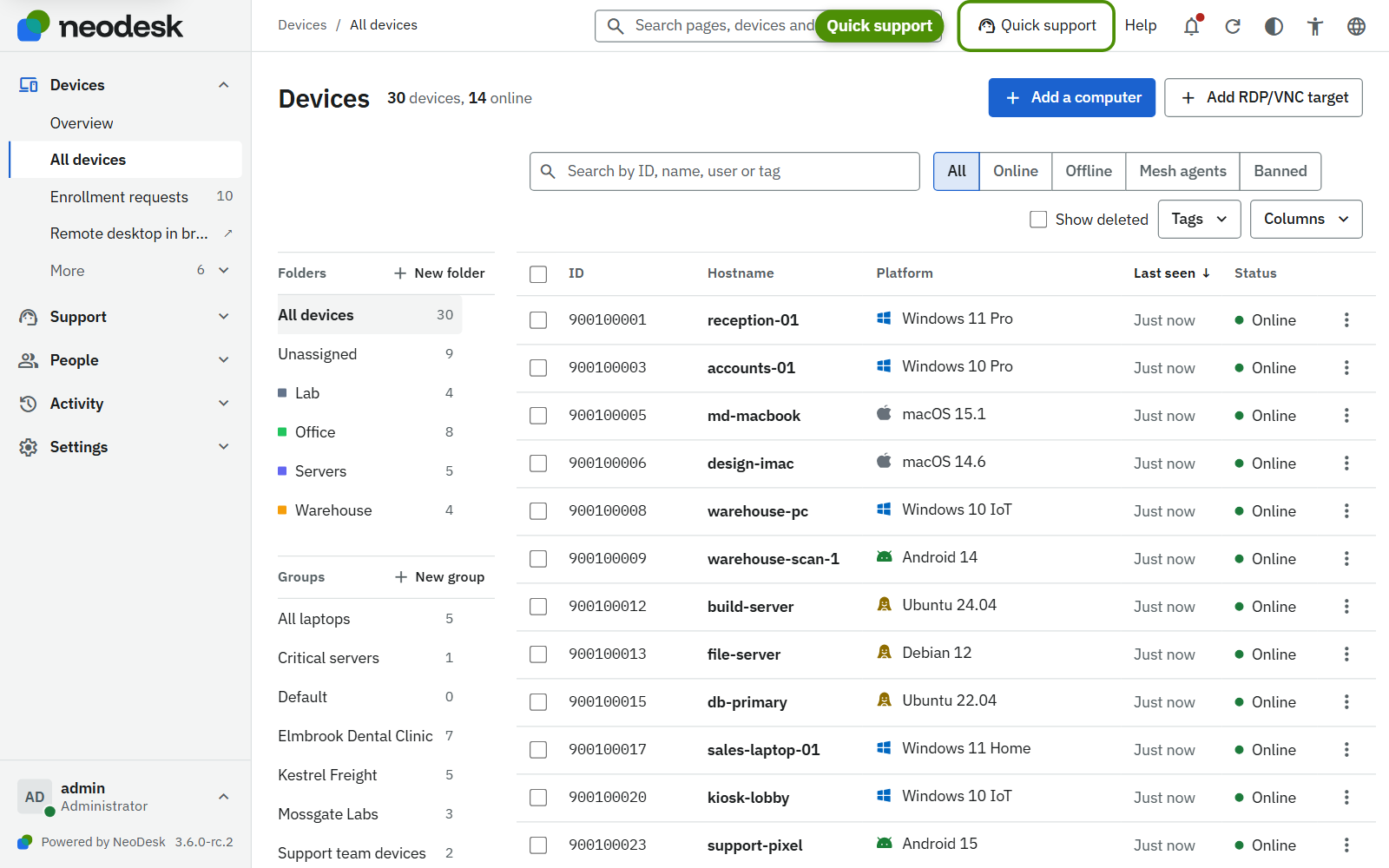
Click Quick support in the top bar, or on the Help requests page.
The console makes the link at once. It works once, for one hour.
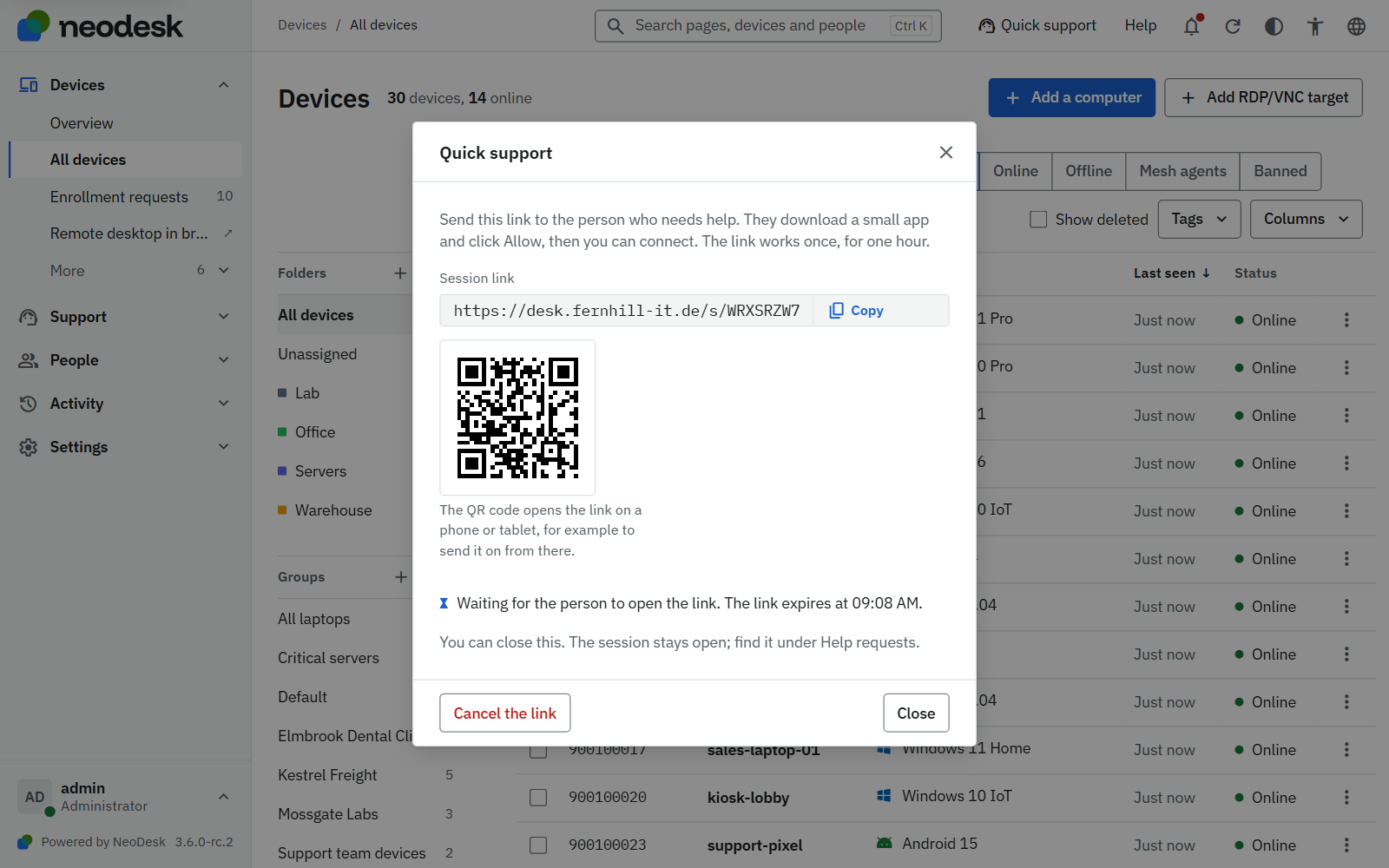
Send the Session link with Copy, the QR code, or Send by email when email is set up under Settings, Email. As for invites, the link uses the console's public address and warns when that is plain HTTP; see Add a computer.
Follow the session
The dialog shows where things stand:
- Waiting for the person to open the link, and when the link expires.
- The app is open on their computer and waits for them to click Allow.
- The computer allowed access. Connect opens the session in the browser; Open in the desktop app offers NeoDesk and RustDesk and opens it in the one you pick (see Links that open the app). You don't need a password: the app hands it to the server for you.
- They declined, the session ended, or the link expired. Make a new link starts again.
Cancel the link ends an unused link. End session ends a running one. You can close the dialog at any time: the session stays open, and Your quick support sessions on the Help requests page lists it with Open to come back to it.
What a session gives you
A quick support session gives you the person's screen, mouse and keyboard. That is what the app asks them to allow. The server turns every other permission of the session off, among them the clipboard, file transfer and printing, sound, the camera, the terminal, tunnels, restarting the computer, recording, blocking their input and privacy mode. It refuses a file transfer, tunnel, RDP, terminal or camera session to their computer with "The person did not allow this in their quick support session".
Copying text and copying files are separate permissions. The person can allow each of them on its own, and the server then turns the clipboard, or file transfer and printing, on for that session. The support app of the current client release asks only for the screen, mouse and keyboard, so both stay off. The choices for them come with the next client release.
What the person sees
The link opens a page that says who wants to help and offers Download NeoDesk Quick Support for their system, with the steps: open the file, check that it names you, and click Allow. When they are done, they click Stop at the top of their screen or close the app. The app comes from the same signed client releases as Add a computer.