

Enrollment requests
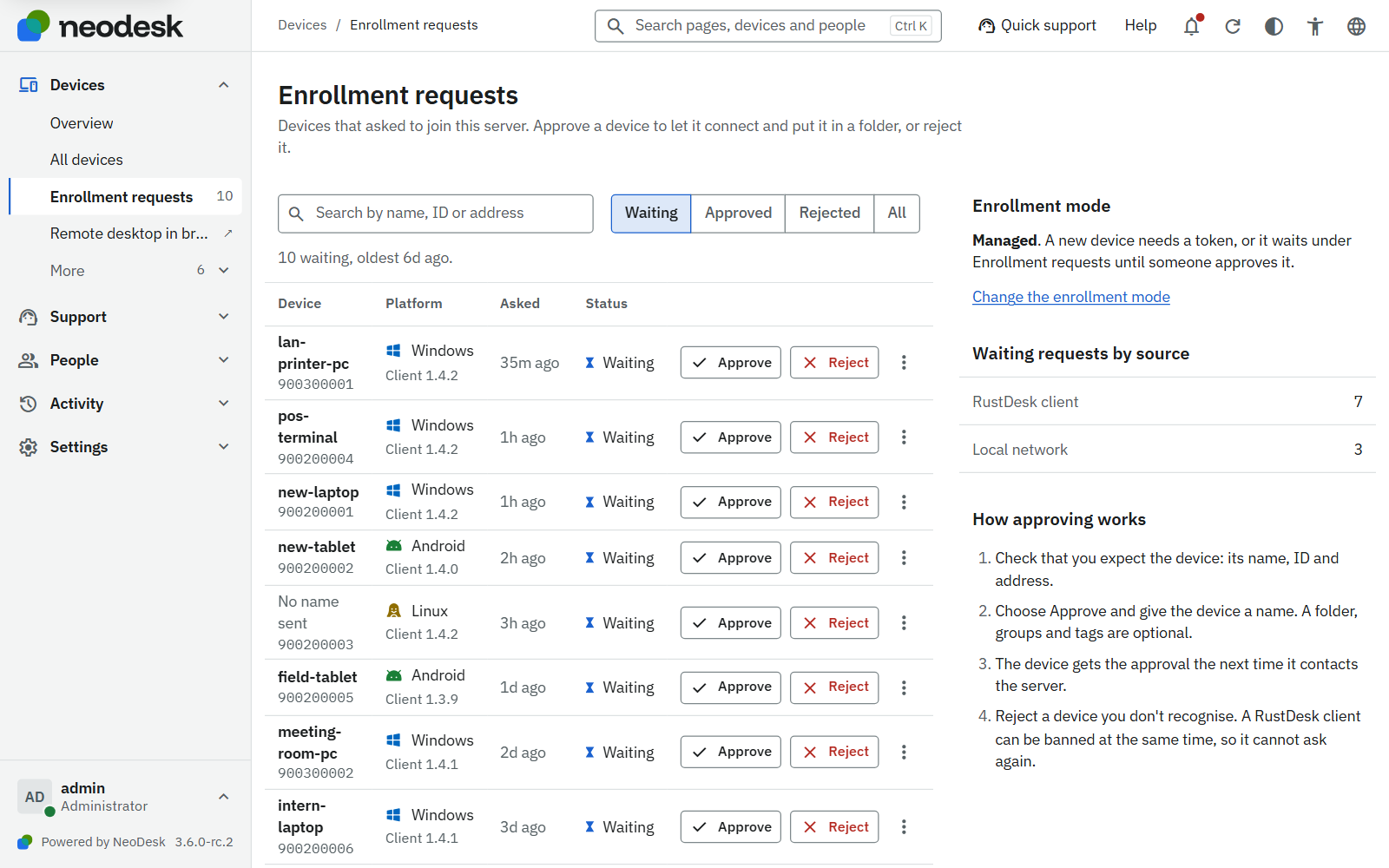
Copy as MarkdownThe enrollment mode decides whether a new device can join the server by itself or has to wait for someone to approve it. Devices that wait show up under Devices, Enrollment requests, where you approve or reject them. The number next to Enrollment requests in the sidebar is how many are waiting.
Enrollment modes
| Mode | What happens when a new RustDesk client registers |
|---|---|
| Open | Any device can join. Nobody has to approve it. |
| Managed | A new device needs a token, or it waits under Enrollment requests until someone approves it. |
| Locked | Only devices with a valid token can join. Others are turned away and don't show up as requests. |
The side column of Enrollment requests shows which mode is on. A mode saved in the console stays across restarts. While none is saved, the server takes the ENROLLMENT_MODE environment variable at its start and saves it as the mode, or uses Open when the variable isn't set. The installers and the Docker container set managed for a new install.
The mode only decides about new devices. A device the server already knows can always register again, in every mode. Tokens are created under Settings, Device tokens. A device that sends a valid token when it registers joins in Managed and Locked mode without waiting. Tokens are for NeoDesk clients: the stock RustDesk client has no way to send one.
The mode applies to RustDesk clients. New mesh agents wait for approval in the same list, whatever the mode; see MeshAgent devices.
Changing the mode
Change it under Settings, Device tokens, in the side column. The mode is saved as soon as you pick it. This page needs permission to manage enrollment: Super admin, Server admin and Global admin accounts have it by default.
The change applies right away to devices that join from then on. Devices already on the server keep working.
For accounts with that permission, Enrollment requests has Change the enrollment mode under the current mode, and Settings, Sign-in, section For everyone, Device enrollment (RustDesk) shows the current mode with Change it on Device tokens. Both links open Device tokens. Other accounts that open Enrollment requests see "An administrator can change this on Device tokens." in the side column while RustDesk clients wait in the Open or Locked mode.
Note
ENROLLMENT_MODE_ENV_OVERRIDE=Y in the server's environment makes the server apply ENROLLMENT_MODE at every start, over the mode saved in the console. A change made in the console then lasts only until the next restart. See Configuration.
If you switch to Open while RustDesk clients are waiting, those devices can connect the next time they try, whether you approve them or not; approving them still sets their name and folder. If you switch to Locked, the waiting ones stay blocked until you approve them. The side column says so while it applies.
The list
The buttons above the list pick what it shows: Waiting, Approved, Rejected or All. The search field finds requests by name, ID or address. The line under it says how many devices wait and how long the oldest has waited, for example "10 waiting, oldest 6d ago."
| Column | Shows |
|---|---|
| Device | The name the device sent, or No name sent, and its ID |
| Platform | The operating system and the client version |
| IP address | The address the request came from |
| Came in via | RustDesk client, Local network or Mesh agent |
| Asked | When the device asked |
| Status | Waiting, Approved or Rejected, with who decided and when, and "device banned" if it was banned at the same time |
On most screens IP address and Came in via are hidden; click a row to see every detail of a request in a side sheet. The list updates by itself when a request arrives or someone decides one elsewhere.
Local network means a client that found this server through discovery on the local network and asked for its settings. RustDesk client means a RustDesk client that registered with the server while approval was required.
Each row also has a menu with Copy ID. For a decided Local network request it has Delete record, which removes the request from the list and changes nothing on the device; that needs permission to manage enrollment, the same one Device tokens needs.
Approving a device
Click Approve on a waiting request. A side sheet opens with the request's details and a short form:
- Device name: filled in with the name the device sent. It is shown in the device list.
- Folder: where the device goes, or No folder.
- Tags: tick tags that other devices use, or type a new one and click Add. When Pick tags from existing device tags is off in Settings, Sign-in, this is one text field with the tags separated by commas.
- Device groups: tick the groups the device should be in. A group decides who can see the device and which access rules apply to it. Only groups you fill by hand are listed; dynamic groups follow the device's tags.
- Status reports: how often the device reports usage, disks and installed software: Standard, Light or Frequent. This field is missing for Local network requests, and it only matters for clients that send these reports.
Click Approve at the bottom of the sheet. The device gets the server settings the next time it contacts the server. Name, folder, tags and groups can be changed later in the device panel.
An approved request shows Open device, which opens the device's panel on the same page.
Rejecting a device
Click Reject on the row or in the sheet. What the dialog offers depends on where the request came from:
- For a RustDesk client or a mesh agent, the device can't connect to this server while the rejection stands. Tick Ban this device to also ban it, so it can't ask again. A banned device then shows under the Banned filter in the device list.
- For a Local network request, you can give a reason, which the device receives. The device doesn't get this server's settings, and the record stays in the list.
A rejected RustDesk client or mesh agent isn't put back into the queue when it asks again. To give it another chance, open the Rejected filter and click Allow again on its row: the device can ask to join again, and if it was banned when you rejected it, the ban is lifted.
What a waiting device can do
In Managed mode, a device that waits for approval can't be reached by anyone and can't start a connection to another device. Nothing changes for it until you approve or reject it.
- New unknown RustDesk clients are turned away without a request while 1000 devices wait. New mesh agents are not put into the list while 500 wait.
- A Local network request that nobody decides is deleted after 30 days. The device shows up again when it asks again.
Who can approve
Approving and rejecting needs permission to approve devices. By default Super admin and Global admin accounts have it; Remote operator, Viewer and Server admin accounts don't. Accounts without it don't see Enrollment requests in the sidebar. An administrator can change the defaults, see Users and roles.