

Add a computer
Copy as MarkdownAn invite link sets up the NeoDesk client on a computer and joins it to your server. The person at the computer opens the link, installs the client, and the computer shows up under Devices, already approved, with the name and folder you picked. Nobody types a server address or a key.
You need the Approve enrollment permission. For a stock RustDesk client, use the values from Client setup instead; see Connect a RustDesk client.
Make an invite
Open Devices, then All devices, and click Add a computer above the list.
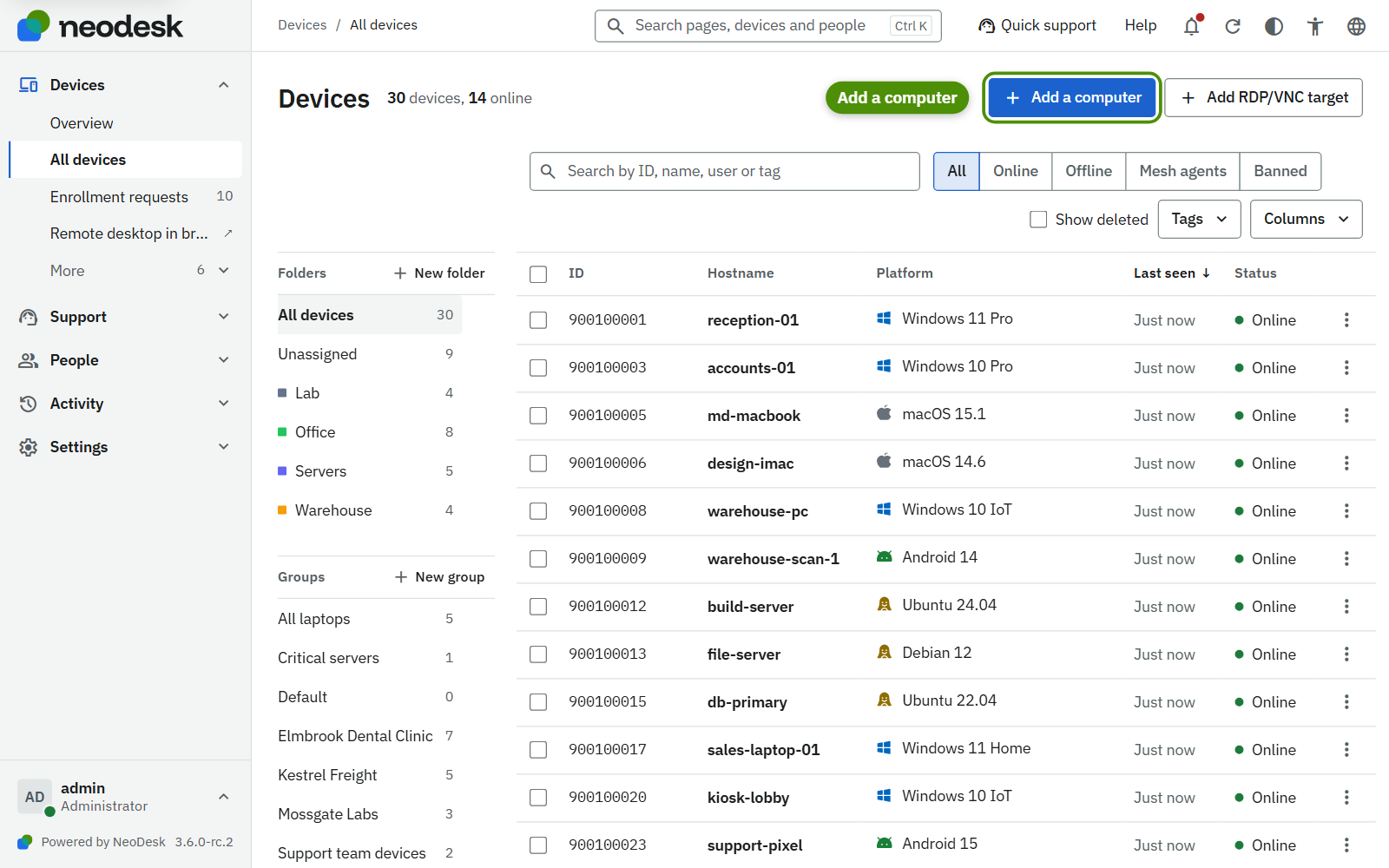
Every field is optional:
| Field | What it does |
|---|---|
| Name | The name the computer gets in Devices. Empty uses the computer's own name. |
| Folder | The folder it joins. Unassigned puts it in none. |
| Send to | An email address that gets the link. Shown only when email is set up under Settings, Email. |
| Works for | 1 day, 7 days (the default) or 30 days. |
| Can be used | Once (the default), 5 times, 25 times or Until it expires. Use more than once to set up several computers with one link; leave Name empty then. |
Click Create invite.
Send the link
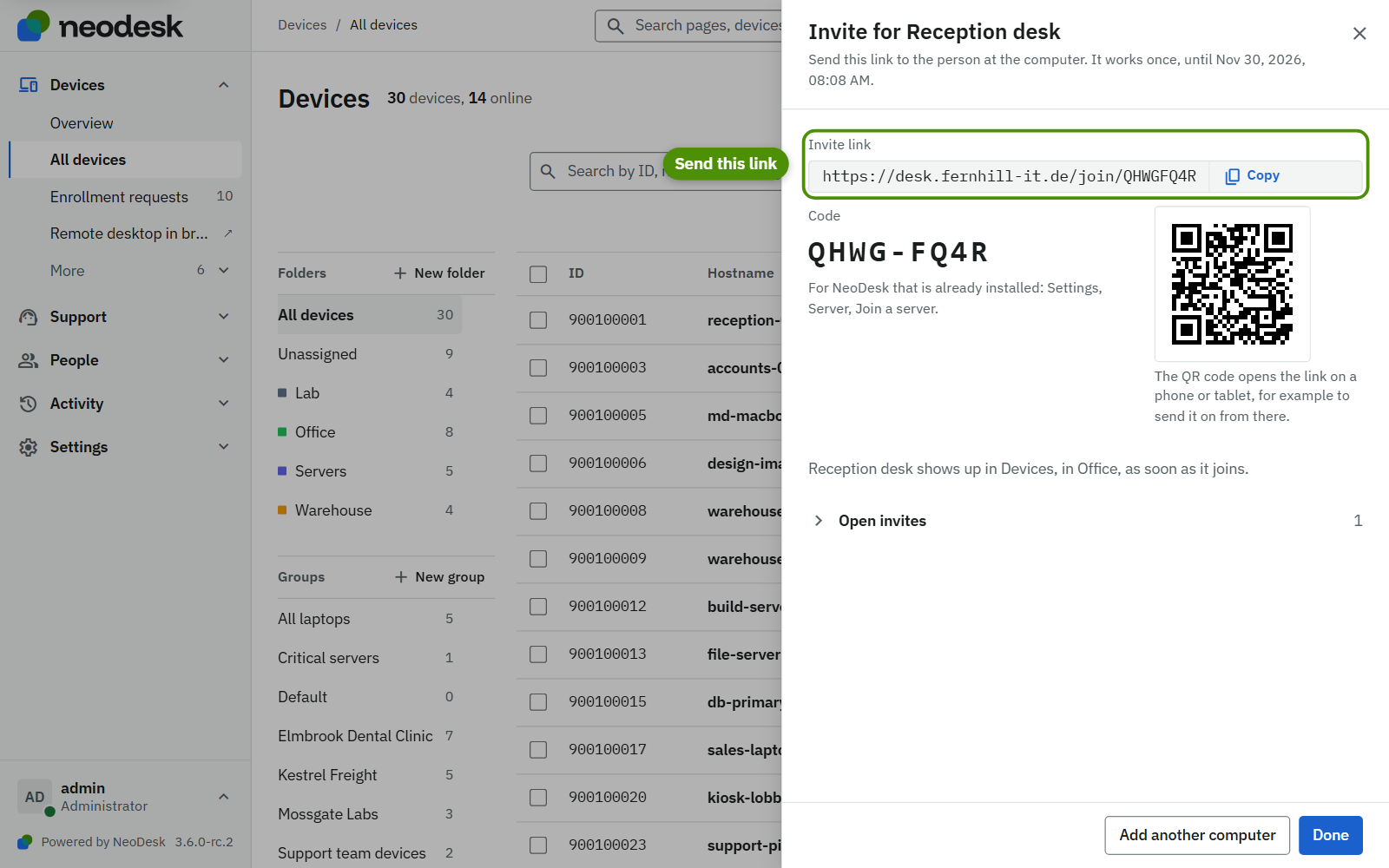
The invite shows:
- Invite link, with Copy. Send it to the person at the computer.
- Code, such as
BWC8-AY6F, for a computer that has NeoDesk already: in the client, Settings, Server, Join a server. - A QR code of the link, to open it on a phone and send it on from there.
- Send by email, when email is set up.
The link uses the console's public address (PANEL_PUBLIC_URL or
PANEL_PUBLIC_HOST, see Configuration), or
the address you opened the console under. When that address is plain HTTP, the
invite warns that the computer cannot check it talks to your server. Use such a
link only on a network you trust, or put the console behind
a reverse proxy with TLS.
Add another computer makes the next invite; Done closes the sheet.
What the person sees
The link opens a page that names your server and offers the download for the person's system: an installer for Windows, a disk image for Mac, and a command to paste on Linux. The page lists the steps for that system and shows the code as well. On a phone it asks them to open the link on the computer instead.
On Windows the steps say what Windows asks before the setup installs. For the
installer (.exe), the prompt names Windows Command Processor, by Microsoft
Windows, and the page says that this is the NeoDesk setup installing itself.
For the MSI, the prompt names NeoDesk, and the page asks the person to check
the publisher it names.
The downloads are the official NeoDesk client releases. Your server fetches them from GitHub, checks their signature, and serves them itself. When it has no release yet, the page says there is no download right now.
On Linux the command installs the client's package with the system's package
manager (apt-get, dnf, zypper or yum) and then joins the computer to your
server. The NeoDesk client installs next to a stock RustDesk and leaves it in
place: it runs as its own service, neodesk.service, and its program is
/usr/bin/neodesk. The command installs the build your server offers even
when the package manager counts it as a downgrade, for example after a release
candidate, and installs it again when the same version is there already.
If the computer has not shown up after the install, have the person open Settings, Server, Join a server in NeoDesk and type the code.
Open invites
Open invites at the bottom of the sheet lists the invites that still work, with how many uses are left and until when. Revoke ends an invite at once. An invite ends by itself when its time is up or its last use is taken.
A computer that joins with an invite is approved in every enrollment mode and gets its device token at once.
A reinstalled or reset computer
After NeoDesk is installed again or the computer is reset, the computer can come back with the same ID and a new key. The server knows the device with its old key and refuses the join. The client shows the server's answer:
This computer's ID is already enrolled with another key. Ask your administrator to approve the new key or to delete the device in the console.Until its new key is approved, the device shows offline, also after the server restarts, and the server stores none of the system information it sends.
A new invite doesn't help, and the refused attempt uses up nothing of the invite. The device's panel shows a New key notice on its Overview tab, with the computer's name, its address, the time and the fingerprint of the new key. Then either:
- Click Approve new key and confirm. The new key becomes the device's key, its old device tokens and sessions end, and the computer can join with the same invite again. This needs the Approve enrollment permission.
- Or delete the device with Permanently delete (release ID) (see Deleted devices). The computer then joins as a new device. A delete without that option keeps the ID reserved, and the server refuses the computer.
A computer with a new key that comes back without an invite, for example set up by hand, shows as offline, and its Overview tab says that the server doesn't accept its new key. Send it an invite and approve the new key, or delete the device for good.