

Two-factor sign-in
Copy as MarkdownWith two-factor sign-in, a password alone no longer opens your account: after the password you also type a six-digit code from an authenticator app on your phone, such as Google Authenticator, Microsoft Authenticator or Authy. Each person turns it on for their own account, and an administrator can make it mandatory for password accounts.
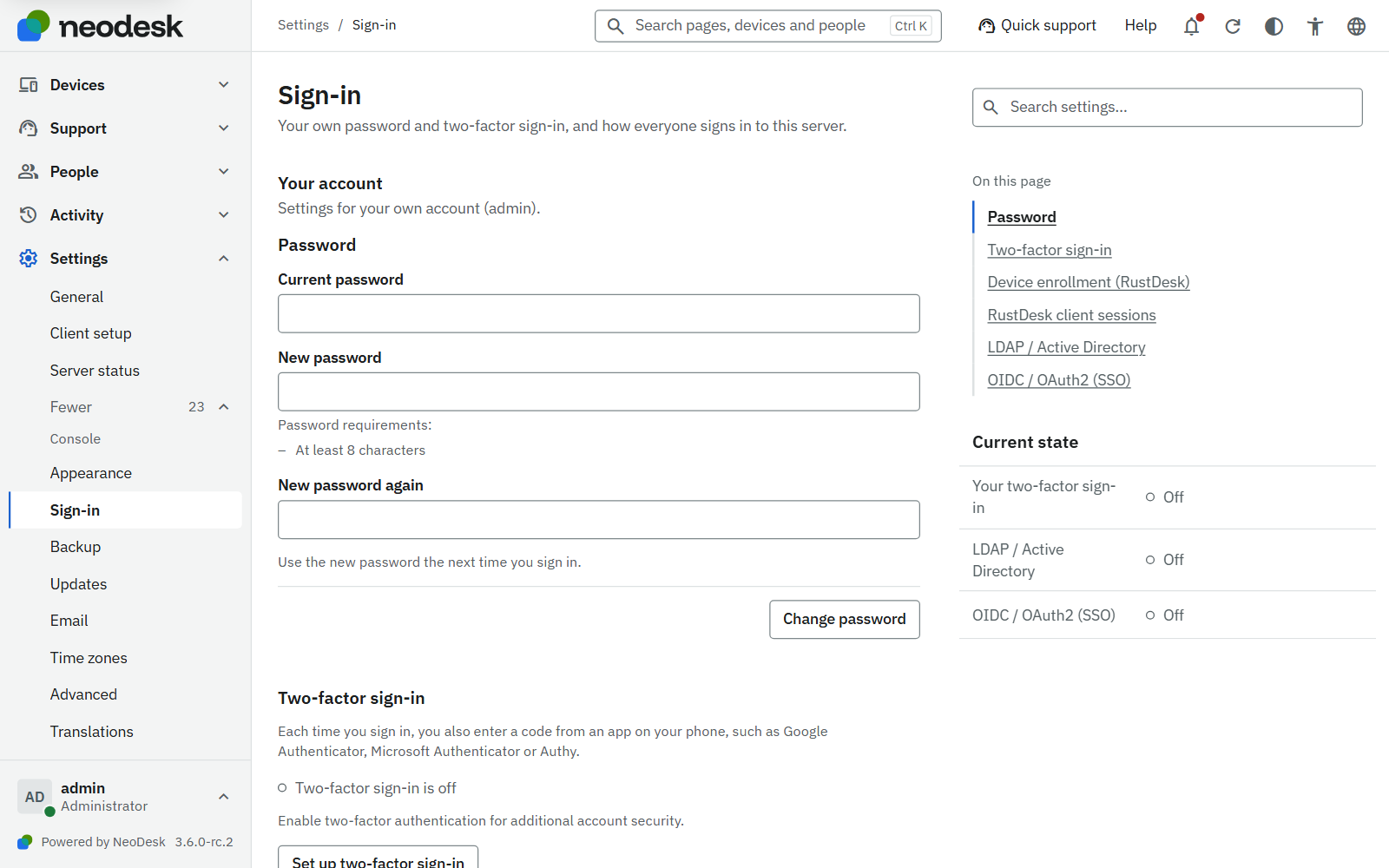
Turn it on
- Open your account menu at the bottom of the sidebar and choose Two-factor sign-in. This opens Settings, Sign-in at the Two-factor sign-in section.
- Click Set up two-factor sign-in.
- Install an authenticator app on your phone if you have none.
- Scan the QR code with the app. If you cannot scan it, type the Manual key into the app instead.
- Type the six-digit code the app shows into Enter verification code and click Verify and turn on.
- The page shows eight Recovery codes. Store them somewhere safe outside the phone, such as a password manager, then click I have saved the codes.
The section now says Two-factor sign-in is on, and Current state on the right shows Your two-factor sign-in as On. Administrators see the same in the Two-factor sign-in column on the Users page.
In the app, the new entry is called NeoDesk followed by your username. Any app for time-based codes works: the codes have six digits and change every 30 seconds.
If you leave the page before step 5, two-factor sign-in stays off. The next Set up two-factor sign-in makes a new key, so remove the unused entry from the app.
Sign in with a code
- Enter your username and password on the sign-in page as before.
- The page asks for the Verification code. Type the six digits your app shows now and click Verify.
The code changes every 30 seconds, and the server accepts only the code of the current 30 seconds. Each code works once. If correct codes are refused, check that the clock on your phone and on the server is right.
You have five minutes after the password for the code. After five wrong codes, or when the time is up, the page says "Session expired. Please log in again." Click Back to login and start with the password again. Wrong codes also count as failed sign-ins, so many of them lock the account for a while (see failed sign-ins).
The RustDesk client asks for the code too when you sign in to it with an account that has two-factor sign-in on.
Use a recovery code
When you do not have your phone, click Use a recovery code instead on the code page, type one of your recovery codes into Recovery code and click Verify. Capital letters, spaces and dashes do not matter.
Each recovery code works once. To get a fresh set, for example when the codes run low:
- Open Settings, Sign-in, and in Two-factor sign-in click New recovery codes.
- Type a current code from your app into Verification code and click New recovery codes.
- Store the eight new codes. The old ones stop working.
A wrong code counts as a failed sign-in.
Turn it off
- Open Settings, Sign-in.
- In Two-factor sign-in, click Turn off two-factor sign-in.
- Enter your Current password and click Turn off two-factor sign-in again. Directory and single sign-on accounts have no password in this console, so they type a current code from the app into Verification code instead.
This deletes the key and the recovery codes. A wrong password or code counts as a failed sign-in.
When someone has lost the phone
If someone has lost both the phone and the recovery codes, an administrator turns two-factor sign-in off for them:
- Open People, then Users.
- In the person's row menu, choose Turn off two-factor sign-in and confirm.
This deletes the person's key and recovery codes and ends their console sessions and RustDesk client sign-ins. They sign in with the password alone until they set it up again. The menu entry shows for accounts with two-factor sign-in on, to people with Edit users whose role may change the account (see who can give which role). Your own two-factor sign-in you turn off under Settings, Sign-in.
The server's password reset command leaves two-factor sign-in as it is.
Make it mandatory
An account with the Server configuration permission (Super admin, Administrator and Server admin by default) can require two-factor sign-in for every password account:
- Open Settings, Sign-in, and go to For everyone.
- Tick Require two-factor sign-in and click Save.
From then on, a password account without two-factor sign-in that signs in to the console sets it up right after the password. The sign-in page shows Set up two-factor sign-in with the QR code and the Manual key. The person scans it, types the code, clicks Verify, stores the recovery codes and clicks I have saved the codes, and is then signed in. The set-up has to be done within 15 minutes, and five wrong codes end it; then the sign-in starts again with the password.
Until the account has two-factor sign-in, the RustDesk client refuses it with "Two-factor sign-in is required for this account. Sign in to the web console once to set it up." People can still turn it off for their own account, and their next console sign-in asks for the set-up again.
The switch does not apply to directory and single sign-on accounts, which are left to their directory or identity provider. It does not apply to Pro license accounts either: they cannot sign in to the console, where the set-up happens, so they keep signing in to the RustDesk client with their password.
Directory and single sign-on accounts
- After a single sign-on, the console does not ask for a code. Use the two-factor sign-in of your identity provider instead.
- A directory account can turn two-factor sign-in on and then gets asked for codes. It turns it off with a current code, as described under Turn it off.