

Users and roles
Copy as MarkdownEveryone who signs in to the web console has an account on the Users page, under People in the sidebar. The account's role decides what the person can do. Its device access decides which devices they see.
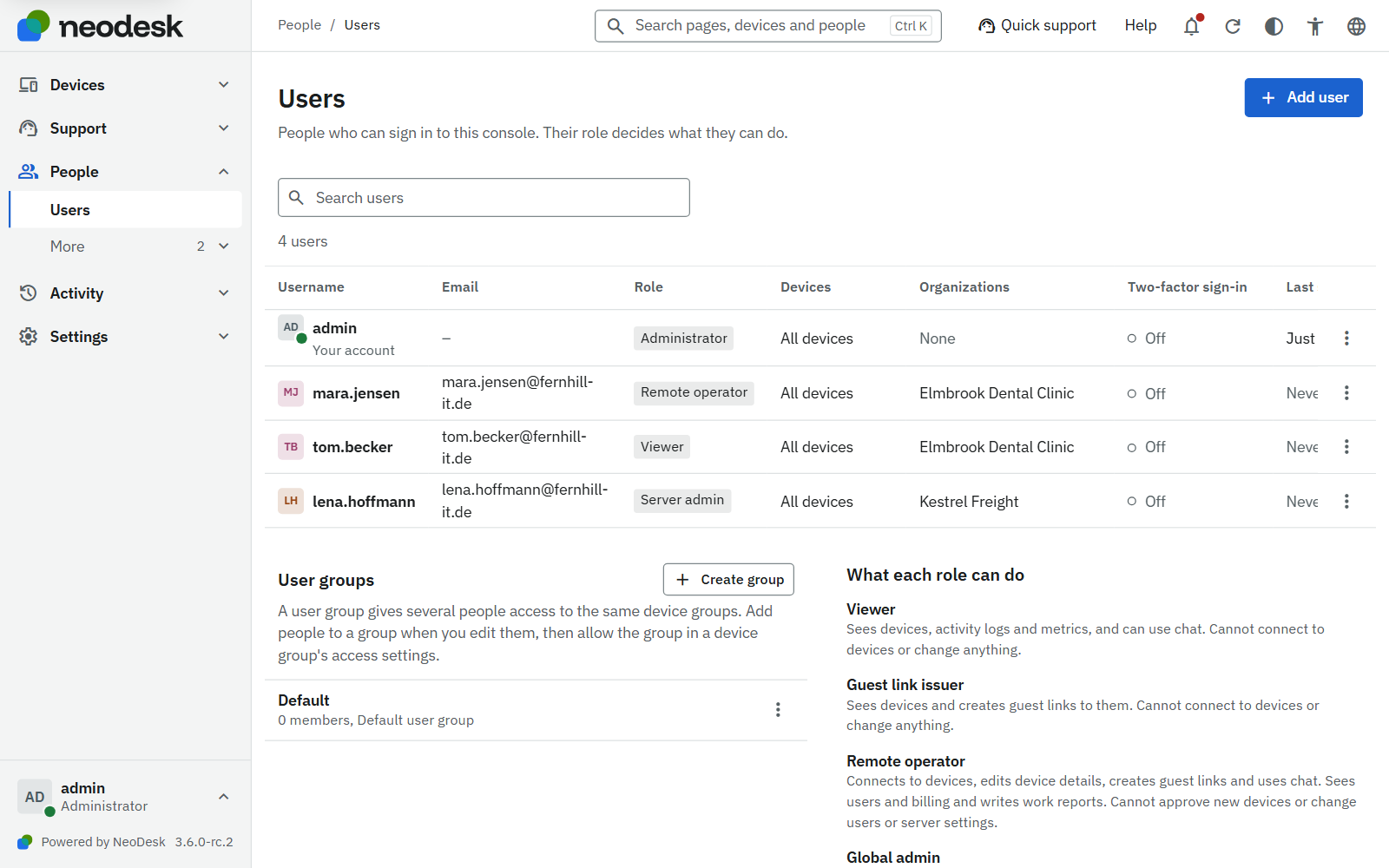
Add a user
You need a role that may create accounts: Super admin, Administrator or Global admin, unless the defaults were changed on the Permissions page.
- Open People, then Users, and click Add user.
- Enter a Username of 3 to 64 characters: letters, digits, dot, underscore, at sign or hyphen.
- Enter a Password that meets the password rules.
- Optionally enter an Email. The console sends help request notifications to it when the person is given device folders or groups.
- Pick a Role. The list only offers roles you may give (see who can give which role).
- Under Device access, choose what the person may see (see which devices a user sees).
- Click Create user.
Accounts added here sign in with a password. Accounts for LDAP and single sign-on are made by their first sign-in, unless Auto-create users is off in those settings, and carry an LDAP/AD or SSO tag next to the role.
Change a user
Click the row, or choose Edit in the row's menu. The sheet shows the username and how the account signs in. Change the Email, Role or Device access and click Save. To set a new password for a password account, type it in New password, or leave the field empty to keep the current one.
- Directory accounts get their role from the directory, so the role choices are locked. Directory and single sign-on accounts have no password field.
- A new role or a new password signs the person out of the console. When you change your own password, your current session stays.
- Reset password… in the row menu sets a new password for a password account in one step.
- Turn off two-factor sign-in in the row menu helps someone who has lost their authenticator app (see Two-factor sign-in).
- If your role may not change an account, a click on its row opens its organizations instead.
Disable an account
To stop someone from signing in and keep their account, choose Disable account in the row menu and confirm. The person can no longer sign in to the console or to the RustDesk client, and their console sessions and client sign-ins end. The account, its settings and its history stay, and the list shows Disabled under the name. A disabled directory or single sign-on account stays disabled when the person signs in again; no new account is made for them.
Enable account in the same menu lets the person sign in again. Disabling needs Edit users and a role that may change the account (see who can give which role). Nobody can disable their own account.
Someone whose account is disabled sees "This account is disabled. Ask an administrator." on the sign-in page once the password is right.
Delete a user
Choose Delete… in the row menu and confirm. The deletion cannot be undone. A password account can no longer sign in. For a directory or single sign-on account, the next sign-in makes a new account while Auto-create users is on, so disable such an account instead. You cannot delete your own account or the last account with the Super admin or Administrator role. That last account also cannot be given another role.
Roles
| Role | Name in role maps | For |
|---|---|---|
| Super admin | super_admin |
Everything, including adding users and changing server settings. |
| Administrator | admin |
The older name of Super admin, with the same permissions. |
| Server admin | server_admin |
Server settings, the blocklist and enrollment tokens; lists and deletes API keys. Sees users and devices, cannot connect to devices or change users. Cannot see the whole server API key or download, restore or schedule full backups. |
| Global admin | global_admin |
Users, organizations and devices, including bans, billing and the terminal and files of NeoDesk agents. No server settings. |
| Remote operator | operator |
Connecting to devices, editing device details, creating guest links, chat and work reports. Sees users and billing but cannot change users. No terminal or files on NeoDesk agents. |
| Viewer | viewer |
Seeing devices, activity logs and metrics, and chat. Cannot connect or change anything. |
| Guest link issuer | guest_issuer |
Seeing devices and creating guest links to them. Cannot connect to devices or change anything. |
| Pro license (client API only) | pro |
Activating RustDesk Pro features in the desktop client. Cannot sign in to the console. |
The name in role maps is what you type in the group to role maps of LDAP and single sign-on.
What each role can do
These are the default permissions. Super admin and Administrator have all of them. Guest link issuer has only View devices and Create guest access links. Pro license has none and can never get a device, RDP and VNC target or organization device permission. A super admin can change the defaults on the Permissions page.
| Permission | Server admin | Global admin | Remote operator | Viewer |
|---|---|---|---|---|
| View devices | Yes | Yes | Yes | Yes |
| Connect to devices | No | Yes | Yes | No |
| Create guest access links | No | Yes | Yes | No |
| Edit devices | No | Yes | Yes | No |
| Delete devices | No | Yes | No | No |
| Ban and unban devices | No | Yes | No | No |
| Change device ID | No | Yes | No | No |
| Change device connection mode | No | Yes | Yes | No |
| Use saved sign-in | No | No | No | No |
| Manage saved sign-in | No | No | No | No |
| View RDP and VNC targets | Yes | Yes | Yes | Yes |
| Connect to RDP and VNC targets | No | Yes | Yes | No |
| Add and edit RDP and VNC targets | No | Yes | No | No |
| Delete RDP and VNC targets | No | Yes | No | No |
| Test RDP and VNC targets | No | Yes | Yes | No |
| View users | Yes | Yes | Yes | No |
| Create users, Edit users, Delete users | No | Yes | No | No |
| Create organizations, Edit organizations, Delete organizations | No | Yes | No | No |
| Manage organization users | No | Yes | No | No |
| Manage organization devices | No | Yes | Yes | No |
| Manage enrollment | Yes | Yes | No | No |
| Approve enrollment | No | Yes | No | No |
| Chat access | No | Yes | Yes | Yes |
| View audit logs, View metrics | Yes | Yes | Yes | Yes |
| Edit blocklist | Yes | No | No | No |
| Server configuration | Yes | No | No | No |
| Manage API keys | Yes | No | No | No |
| Run capacity tests | Yes | No | No | No |
| Edit appearance | No | Yes | No | No |
| View billing, Write work reports | No | Yes | Yes | No |
| Manage billing packages and contracts, Export billing data | No | Yes | No | No |
| View CDAP devices | No | Yes | Yes | Yes |
| Send CDAP commands | No | Yes | Yes | No |
| CDAP terminal access, CDAP file access | No | Yes | No | No |
| Power actions on MeshCentral agents | No | Yes | Yes | No |
| Terminal on MeshCentral agents, Files on MeshCentral agents | No | Yes | No | No |
| Terminal on NeoDesk agents, Files on NeoDesk agents | No | Yes | No | No |
Write work reports lets an account file the work report of a session it opened itself. Filing one for another account's session also needs Edit users.
On a device with the NeoDesk agent, the tools in the device panel need these permissions:
- The terminal: Terminal on NeoDesk agents.
- The files: Files on NeoDesk agents.
- The screen, keyboard, mouse and clipboard, starting and stopping services, and ending processes: Connect to devices.
- The lists of services, processes, events and activity: View devices.
- Asking the agent for fresh data: Edit devices, which opens none of the other tools.
The person's client features apply to these tools as well.
Who can give which role
- Super admin and Administrator may give every role and change every account.
- Global admin may give Viewer, Guest link issuer, Remote operator and Pro license, and change accounts that have one of those roles.
- Every other role gives no roles. Changing a role's permissions does not change this.
- Nobody gives more than they have. A role can be given only when every permission it has, with the changes on the Permissions page, is one the giver's role has too. When a super admin gives Remote operator a permission that Global admin lacks, a Global admin can no longer give Remote operator or change Remote operator accounts. The rule holds in the console, on the API port and for the role of a new API key.
- Everyone with a password account may change their own password under Settings, Sign-in. A super admin cannot take the super admin role away from their own account.
- An account with Edit users may change its own password and email on the Users page. Only an account that may give its own role, in practice Super admin and Administrator, can change its own Direct devices, Folder access and User groups. Anyone else gets "You cannot change your own device access".
Which devices a user sees
Super admin, Administrator, Server admin and Global admin always see every device. For everyone else, three things in the Device access part of the user sheet decide:
- User groups: groups the person belongs to. A device group's access settings can allow a user group (see Devices).
- Folder access: folders whose devices the person sees. A folder chosen for anyone is hidden from other operators and viewers who are not given it.
- Direct devices: device IDs, separated by commas, that the person sees whatever their folders and groups.
The Device visibility default under Settings, General sets what happens around that. With Open, people see every device except those in a folder or device group whose access list leaves them out. With Restricted, they see only the devices they were given, and someone given nothing sees an empty device list. Under Open, giving a person a folder hides that folder from others but does not narrow the person's own view, so use Restricted to limit people to certain devices. The Devices column on the Users page shows the result for each account.
To make a user group, click Create group in the User groups section of the Users page, then add people to it when you edit them. Deleting a group takes away the device access its members had through it. It needs a role that may change every member of the group, and the panel access limits the group put on its members stay with them as their own settings.
Example: an operator for some devices
Someone who should connect to a few devices and see nothing else gets the Remote operator role and a folder:
- Under Devices, put the devices in a folder (see Folders).
- On the Users page, add the person with the role Remote operator. Under Device access, choose the folder in Folder access. For a team, make a user group instead, choose it in the folder's Allowed user groups, and put the people in the group.
- Under Settings, General, set Device visibility default to Restricted. Under Open the person would also see every device that is in no folder or group with an access list.
The person can then connect from the console's web viewer or the RustDesk app and change their own password under Settings, Sign-in. Device access decides only which devices they see: when they connect, the device still asks for its RustDesk password or for approval on its screen. To hide parts of the console from them as well, use panel access.
For someone who needs a device for a short time and no account, a guest access link is enough.
Password rules
A new password needs 8 to 128 characters, and nothing else about it is checked. The same rule applies on the Users page, when people change their own password under Settings, Sign-in, Password, to the accounts of an organization, and to the reset command below. The strength line under the password field is only a hint. Saving your own new password ends your other console sessions.
If nobody can sign in as an administrator any more, run the server's reset command on the server, as the user and with the environment the service runs with, so it opens the same database. It reads the new password from standard input and makes an Administrator account of that name if none exists:
read -rs NEW_PASSWORD
printf '%s\n' "$NEW_PASSWORD" | neodesk-server reset-password admin
The commands for Docker, and the Reset admin password entry of the installers' menus, are in Troubleshooting. The reset leaves two-factor sign-in as it is; to turn it off for someone, see Two-factor sign-in.
Sessions and failed sign-ins
By default an account has one console session at a time: signing in somewhere else ends the older session, and that browser shows "Your session expired or was replaced by a new login." A session also ends after 30 minutes without activity, and 24 hours after sign-in at most. These environment variables change that (see Configuration):
| Variable | Default | Meaning |
|---|---|---|
SESSION_MAX_PER_USER |
1 |
Console sessions per account. 0 allows any number. |
SESSION_IDLE_TIMEOUT |
1800000 |
Milliseconds without activity before the session ends, 1 minute to 24 hours. |
SESSION_MAX_AGE |
86400000 |
Milliseconds after sign-in when the session ends, 5 minutes to 7 days. |
API_MAX_FAILED_ATTEMPTS |
10 |
Failed sign-ins of one account from one address that lock it there. |
API_LOCKOUT_MINUTES |
15 |
How long that lock lasts after the last failed attempt. |
API_IP_RATE_LIMIT |
30 |
Failed sign-ins from one address that block the address. |
API_ATTEMPT_WINDOW |
15 |
Minutes in which the failed sign-ins are counted. |
How long the RustDesk client stays signed in is set separately under Settings, Sign-in, RustDesk client sessions: 7 days by default, renewed while the client is in use, for 30 days at most.