

Permissions
Copy as MarkdownA role is a set of permissions that every account with that role has. Two places change what people may do: the Roles and permissions page changes a role for everyone who has it, and Panel access on the Users page narrows single parts of the console, and the client features of remote sessions, for one person or one user group.
Roles and permissions
Only Super admin and Administrator accounts see this page. Open People, then Roles and permissions.
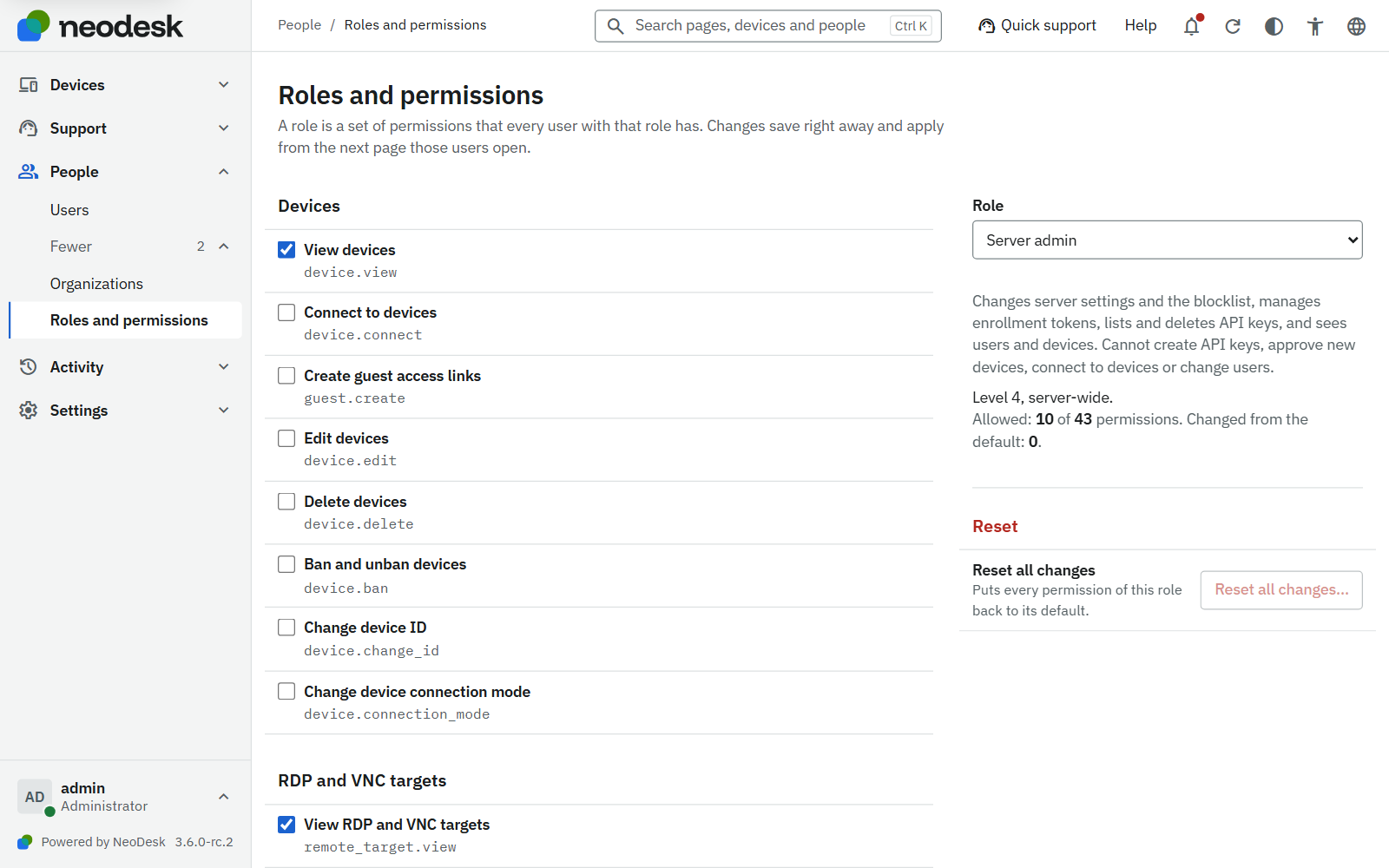
Pick a role in Role on the right. Under it you see the role's description and a line such as "Allowed: 10 of 45 permissions. Changed from the default: 0." The permissions are grouped: Devices, RDP and VNC targets, Users, Organizations, Enrollment, Chat, Audit and monitoring, Server, Appearance, Billing, IoT devices (CDAP), MeshCentral agents and NeoDesk agents. Each row shows the permission's name and, under it, its code name, such as device.view.
Change a permission
- Pick the role.
- Tick or clear the permission. The change is saved at once: the row says Saving…, then Saved, or why it failed.
- A changed row says Changed (default: allowed) or Changed (default: not allowed) and has a Reset button that puts it back.
To put every permission of the role back to its default, click Reset all changes… under Reset and confirm. The table of defaults is on Users and roles.
Changes apply from the next page people with that role open. They do not sign anyone out.
What you cannot change
- Super admin and Administrator always have every permission. Picking one of them shows "This role always has every permission. It cannot be changed."
- Pro license never gets a device, RDP and VNC target or Manage organization devices permission. For Pro license these rows are off and locked, with the note "No effect: a Pro license account never gets device permissions."
- Who may give which role is fixed by the role itself (see who can give which role). A permission you add to a role also counts there: a role that has more than the Global admin role can no longer be given by a Global admin. A role that may give no role cannot add or delete accounts, so for Server admin, Remote operator, Viewer, Guest link issuer and Pro license, Create users and Delete users are off and locked with the note "No effect: this role can give no role, so it cannot create or delete accounts."
A change saved for a locked row before it was locked still shows as changed and can be put back with Reset.
Panel access
Panel access narrows what one person or one user group may do in each part of the console. It never gives more than the person's role allows.
Open People, then Users. In the row menu of a person, or of a group under User groups, choose Panel access…. The sheet lists the console's sections in groups (Core, Administration, Operations, Commercialization, Security and System) with a level for each:
| Level | Effect |
|---|---|
| None | The section shows that the person has no access, and the server refuses its requests. |
| Read | The person can open and read the section but not change anything in it. |
| Full | Reading and changing, as far as the role allows. |
| Role or group default | No setting for this person. For a group the choice is called Not set. |
The row All sections in this group sets every section of a group at once. Click Save to store the sheet. Reading it needs the View users permission. Saving it needs Edit users and a role that may change the person, or every member of the group (see who can give which role). For your own account, or a group you are in, a save may keep or lower what you have but never raise it; the server answers "You cannot widen your own panel access".
When a user group is deleted, each member keeps the section levels and client features the group lowered for them, as their own settings. A limit set on the group stays a limit.
Which setting wins
For each section the first of these that exists decides, and the result is then capped at what the role allows:
- The person's own setting for the section.
- The person's own setting for the section's group.
- The highest setting among the person's user groups.
- The role.
Under every row the sheet says what applies now and where it comes from, for example "Now: Read, from the role". When a setting is higher than the role allows, the sheet says "The role allows Read here; that limit still applies."
Section settings do not apply to Super admin and Administrator accounts: they always have full access everywhere, so they can repair anyone's access.
The server refuses a save that would take away your own write access to Users, for your account or through one of your user groups, with "You can't take away your own write access to Users: you could no longer change panel access."
Client features
The Client features part of the same sheet limits what a person may do in remote sessions. Each feature has Default, On or Off:
| Feature | When it is off |
|---|---|
| Remote control | The session shows the screen, without mouse and keyboard. On a NeoDesk agent, the device panel's screen, keyboard and mouse, starting and stopping services and ending processes are off. |
| File transfer | No file transfer, and no printing from the device to the printer of the person who connects. On a NeoDesk agent, the device panel's files are off. |
| Clipboard | No shared clipboard, also not with a NeoDesk agent. |
| Audio | No sound from the device. |
| Tunnels and port forwarding | No TCP tunnels, which includes RDP through RustDesk. |
| Terminal | No terminal session, and no terminal on a NeoDesk agent. |
| Remote reboot | The device cannot be restarted from the session. |
| Privacy mode | No privacy mode. |
The person's own setting decides. Without one, their user groups decide: the feature is on if any group has it on, and off if every group that sets it has it off. With no setting anywhere, it is on. Unlike the section settings, client features apply to Super admin and Administrator accounts too.
They apply to sessions the person starts while signed in: from the RustDesk app signed in to their account, and from the console's web viewer. In the web viewer they also cover CDAP, MeshCentral and RDP or VNC sessions, and in the device panel the tools of the NeoDesk agent: a tool whose feature is off answers, for example, "The terminal is turned off for your account" before anything reaches the device. A RustDesk device follows them when it runs the NeoDesk client or RustDesk 1.4.5 or later, not on Android; Privacy mode needs the NeoDesk client or RustDesk 1.4.7 or later. A file transfer, terminal or tunnel session the person may not open is refused when it starts. Sessions opened through a guest access link follow the client features of the account that made the link.
A RustDesk app that is not signed in starts sessions without these limits. To close that gap, turn on Only signed-in RustDesk apps can start sessions under Settings, General.