

The overview page
Copy as MarkdownOverview is the first page you see after you sign in. It shows what needs your attention, how your devices are doing, the last two weeks of remote sessions and help requests, and the values a RustDesk client needs to connect. To come back to it, open Devices, then Overview.
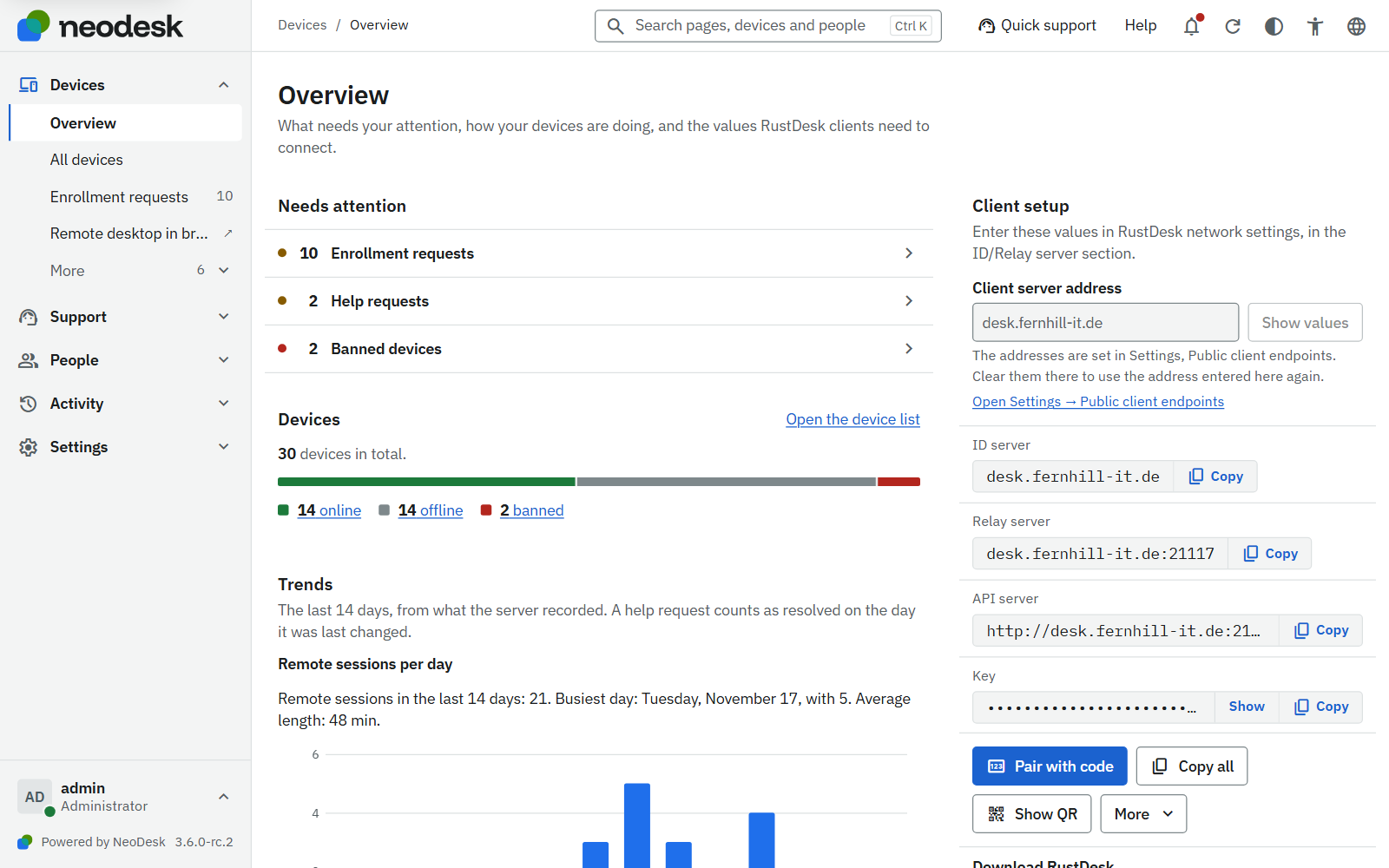
The page loads its numbers again every 30 seconds while the browser tab is visible, and when you click the refresh button in the top bar. Some parts only show for accounts that may use them; each section below says which.
Needs attention
This list shows what needs someone right now. Each line appears only while there is something to do, and a click on it opens the page where you deal with it.
- Server status: the ID server or the relay server is not running. The line says which one and what fails because of it, for example "The relay server is not running. Connections that need the relay will fail." It also shows "Unknown" when the console could not ask the server. The click opens Server status under Settings, for accounts that may change server settings.
- Enrollment requests: how many devices wait for approval. It opens Enrollment requests. Only accounts that may approve devices see this line.
- Help requests: how many help requests are open. It opens Help requests under Support. It needs the permissions to see devices and to use chat.
- Banned devices: how many devices are banned. It opens the device list with the Banned filter on.
When nothing is waiting, the list says "Nothing needs attention. The ID and relay servers are running."
Devices
This section shows how many devices the server knows, for example "30 devices in total.", and a bar that splits them into online, offline and banned. A banned device is counted as banned only, so the three numbers add up to the total.
Each number is a link to the device list with the matching status filter. Open the device list opens the device list without a filter.
Accounts that may not see devices don't get this section.
Trends
Two charts cover the last 14 days. They are the same charts as at the bottom of Reports under Activity.
- Remote sessions per day: the remote sessions the server recorded per day. The sentence above the chart gives the total, the busiest day and the average length of a session.
- Help requests opened and resolved: how many help requests were opened and how many were resolved each day, and how many are still open. A help request counts as resolved on the day it was last changed.
Under each chart, Show the numbers opens the same data as a table.
The server counts the sessions of at most 500 devices. On a larger server the sentence says how many devices it covered, for example "This covers the first 500 of 800 devices." The server keeps the counted result for five minutes, so a session that ended a moment ago can take that long to appear.
Trends show for accounts that can open the pages under Activity. See Activity and audit log.
Client setup
The side column holds the four values a RustDesk client needs: ID server, Relay server, API server and Key. Each has a Copy button. The key stays hidden until you click Show.
Client server address is the address the values are built from. Type another address and click Show values to get the values for that address, for example when clients reach the server under a different name. This changes only what the page shows; the server's own setting is in Settings, Public client endpoints. When the addresses are set there, the field is locked and a link takes you to the setting.
If the values point at this computer only (localhost), a warning says that other computers and phones can't reach them.
The buttons under the values:
- Pair with code creates a one-time code for a NeoDesk agent. The code works for 10 minutes. Only accounts that may approve devices see this button.
- Copy all copies the four values, one per line, each with its name.
- Show QR shows a QR code that the RustDesk app on a phone can scan to fill in the server settings.
- More has Copy deploy string and Windows install script (Intune).
Below the buttons are links to Download RustDesk (the official release page on GitHub), Support agents and Server key and QR code. The last two show only for accounts that may open those pages.
How to put these values into a client is explained in Connect a RustDesk client.
Server status
The last section shows whether the parts of the server run:
| Row | What it shows |
|---|---|
| ID server | Running, Stopped or Unknown |
| Relay server | Running, Stopped or Unknown |
| Web console | Always Running, since you are looking at it |
| Web console running for | How long the web console has been running since it started |
Ports is folded. Open it to see the ports the server listens on: Signal (TCP/UDP), NAT test (TCP), WebSocket signal, REST API (HTTP), Relay (TCP), WebSocket relay, Console (HTTP) and Client API (HTTP). What each port is for is explained in Ports.
Accounts that may change server settings also get Open server status, which opens the full status page under Settings.