

Remote IT support for your own staff
Copy as MarkdownYour IT team helps the people in your own company: a laptop that won't print, a new starter's PC, a server in the back room. With NeoDesk the remote support server runs inside your company. People sign in with the accounts they already have, each person in IT gets the role that fits, and the audit log shows who did what. This page follows that setup, with a link to the docs for each step.
Sign in with the company's accounts
Open Settings, Sign-in. Under For everyone you find two ways to connect your directory:
- LDAP / Active Directory: people sign in with their directory user name and password. Their account is made at the first sign-in, and their role comes from their directory groups at every sign-in. See LDAP and Active Directory.
- OIDC / OAuth2 (SSO): the sign-in page gets a button that sends people to your identity provider, such as Keycloak, Okta, Azure AD or Google. Roles can come from the groups the provider sends. See Single sign-on with OIDC.
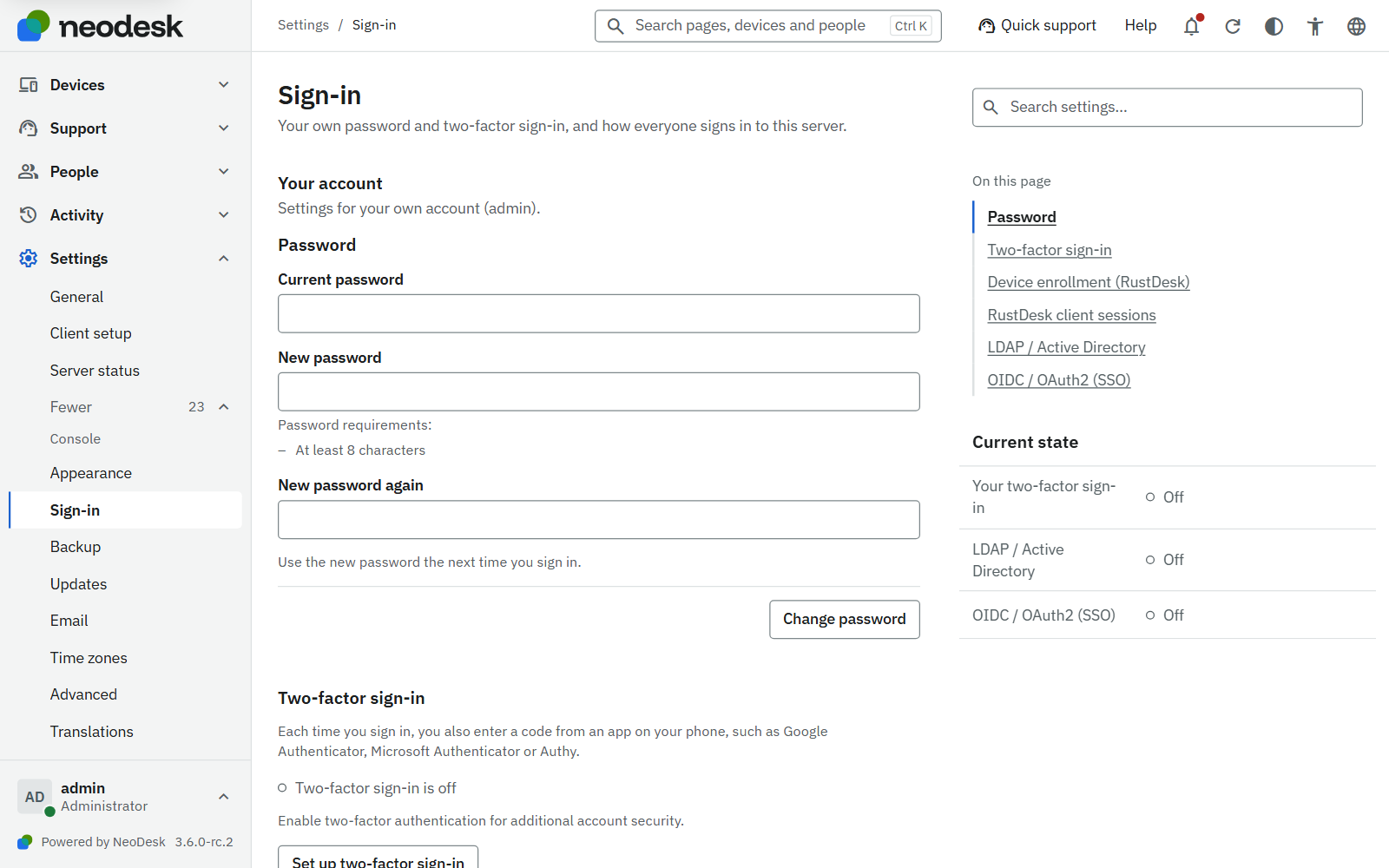
Both also work in the stock RustDesk client: people sign in there with the same account and get their address book.
Give each person in IT the right role
Map directory groups to roles, so a change in the directory changes what a person may do at their next sign-in. The roles that fit an internal IT team:
| Role | What it is for |
|---|---|
| Super admin | Everything, including users and server settings |
| Server admin | Server settings, the blocklist and enrollment tokens, without connecting to devices |
| Global admin | Users, organizations and devices, without server settings |
| Remote operator | Connecting to devices and editing their details |
| Viewer | Seeing devices and activity, without connecting |
| Guest link issuer | Handing out guest links to devices, without connecting |
A super admin can change what each role may do under People, Roles and permissions, and narrow single parts of the console for one person or group with Panel access. See Users and roles and Roles and permissions.
Require a second factor
For accounts that sign in with a password, tick Require two-factor sign-in under Settings, Sign-in, For everyone. From then on, everyone sets up an authenticator app at their next console sign-in, and the RustDesk client asks for the code too. Directory accounts can turn it on for themselves; single sign-on accounts use the second factor of your identity provider. See Two-factor sign-in.
Roll the client out
For the stock RustDesk client on Windows, roll out RustDesk's MSI as you usually do, for example through Intune. Then run the script from Overview, Client setup, More, Windows install script (Intune): it gives RustDesk your server's four values, and can also set a permanent password for unattended access. For NeoDesk's own client, make one invite link under Devices, Add a computer that works several times. See Set up many computers at once.
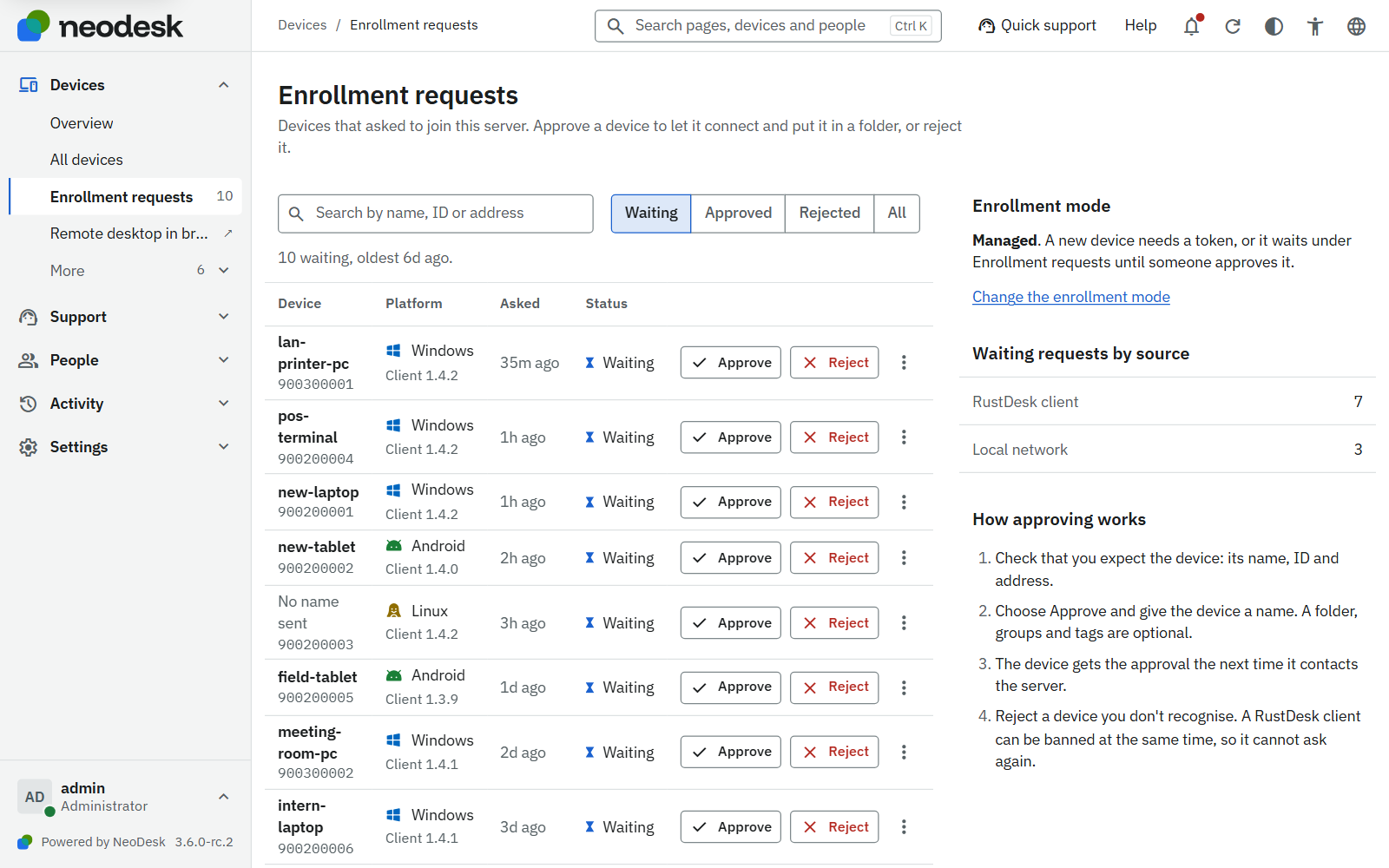
New installs start in the Managed enrollment mode: a new RustDesk client waits under Enrollment requests until someone in IT approves it, so a computer can't join just because it knows the server's address. Computers that join through an invite link are approved at once. See Enrollment.
Help a colleague
Find the computer under Devices by name, ID or user, and click Connect. The session opens in a browser tab; the person at the computer accepts it, or the computer's permanent password lets you in. See Remote desktop in the browser.
For a computer that isn't on the server yet, such as a colleague's laptop at home, send a quick support link. It works once, for one hour, and nothing gets installed.
See who did what
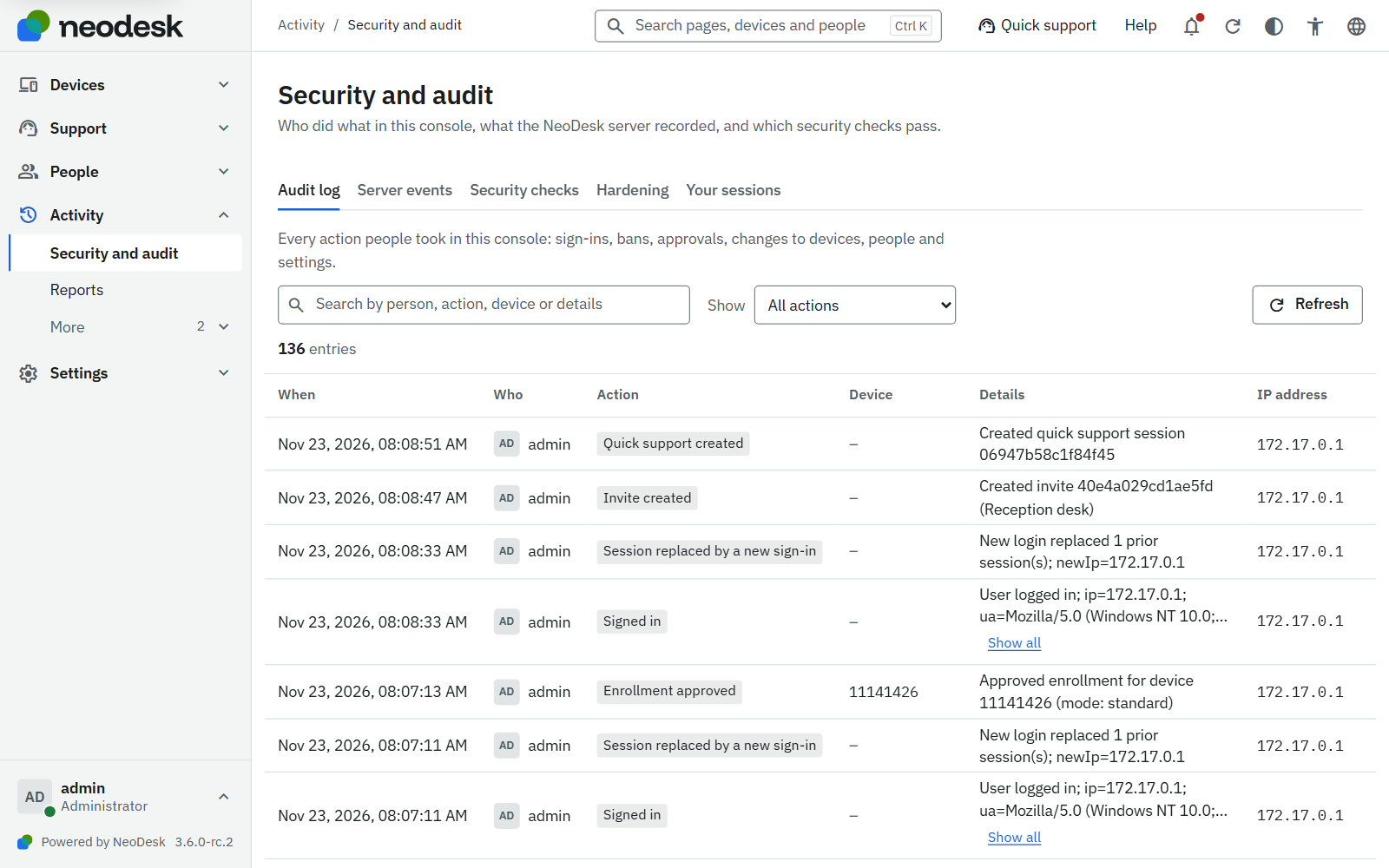
Activity, Security and audit has the audit log: every sign-in, ban,
approval and change to devices, people and settings, with the account, the
time and the address. Filter it by kind, or search it for a person or a
device. The server keeps these entries for 90 days; to keep the server's own
events longer, write them to a file with AUDIT_LOG_FILE. See
Activity and audit log and
Monitoring.
When someone leaves
Choose Disable account in the person's row on the Users page. They can no longer sign in to the console or the RustDesk client, and their open sessions end. Disable directory and single sign-on accounts rather than deleting them: while Auto-create users is on, their next sign-in would make a new account. See Disable an account.
What stays in the company
The server, its database and its audit log run on your machine. NeoDesk sends no analytics, crash reports or usage data. A few features reach the internet, such as the client downloads for invite links, which come from GitHub; Privacy lists every host the server contacts and when.