

Remote support for IT service providers
Copy as MarkdownYou look after the computers of several customers, say a practice, an office and a shop. With NeoDesk the remote support server is yours: it runs on a machine you choose, your customers' computers connect to it, and you and your technicians work in its web console. This page follows the work from setting up the server to billing a session, with a link to the docs for each step.
Set up the server once
Install NeoDesk with Docker, on Linux or on Windows, on a machine your customers' computers reach over the internet. They connect on 21115 to 21117 and 21121 over TCP and on 21116 over UDP; see Ports. Put the console behind a reverse proxy with TLS, because the links you send to customers use its address.
Then sign in for the first time, change the admin password and set the address clients use.
One organization per customer
Under People, Organizations, create one organization for each customer. On its Devices tab you assign the customer's computers, and on its Users tab you add the people who work with them: your technicians' accounts, or a client sign-in for someone at the customer who uses NeoDesk's client.
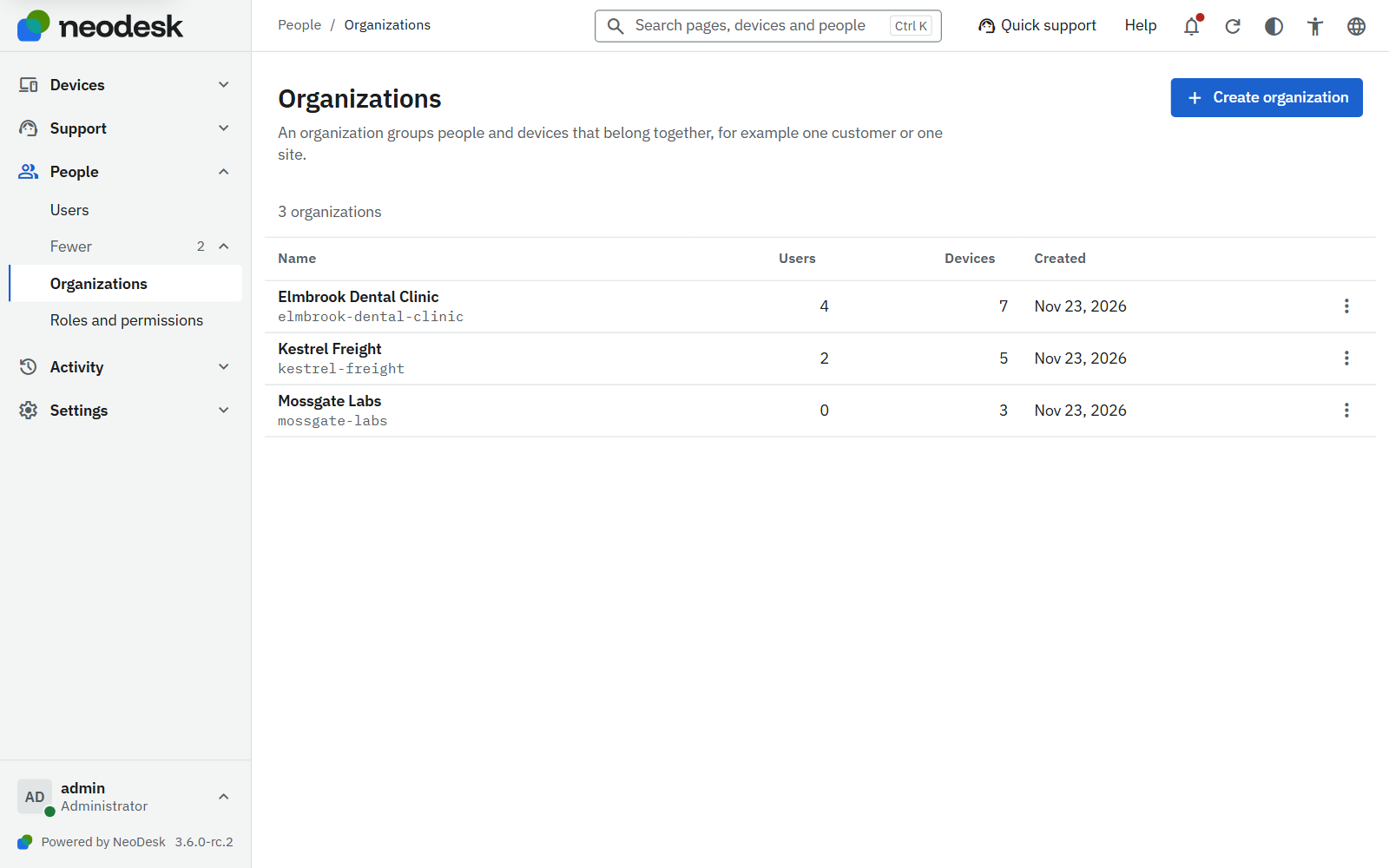
The organization's shared address book gives its members the customer's computers in the RustDesk client. With Set password on a contact, they connect without typing the computer's password. See Organizations.
An organization groups a customer. It doesn't limit what your technicians see in the console; Give technicians only some customers covers that.
Bring a customer's computers in
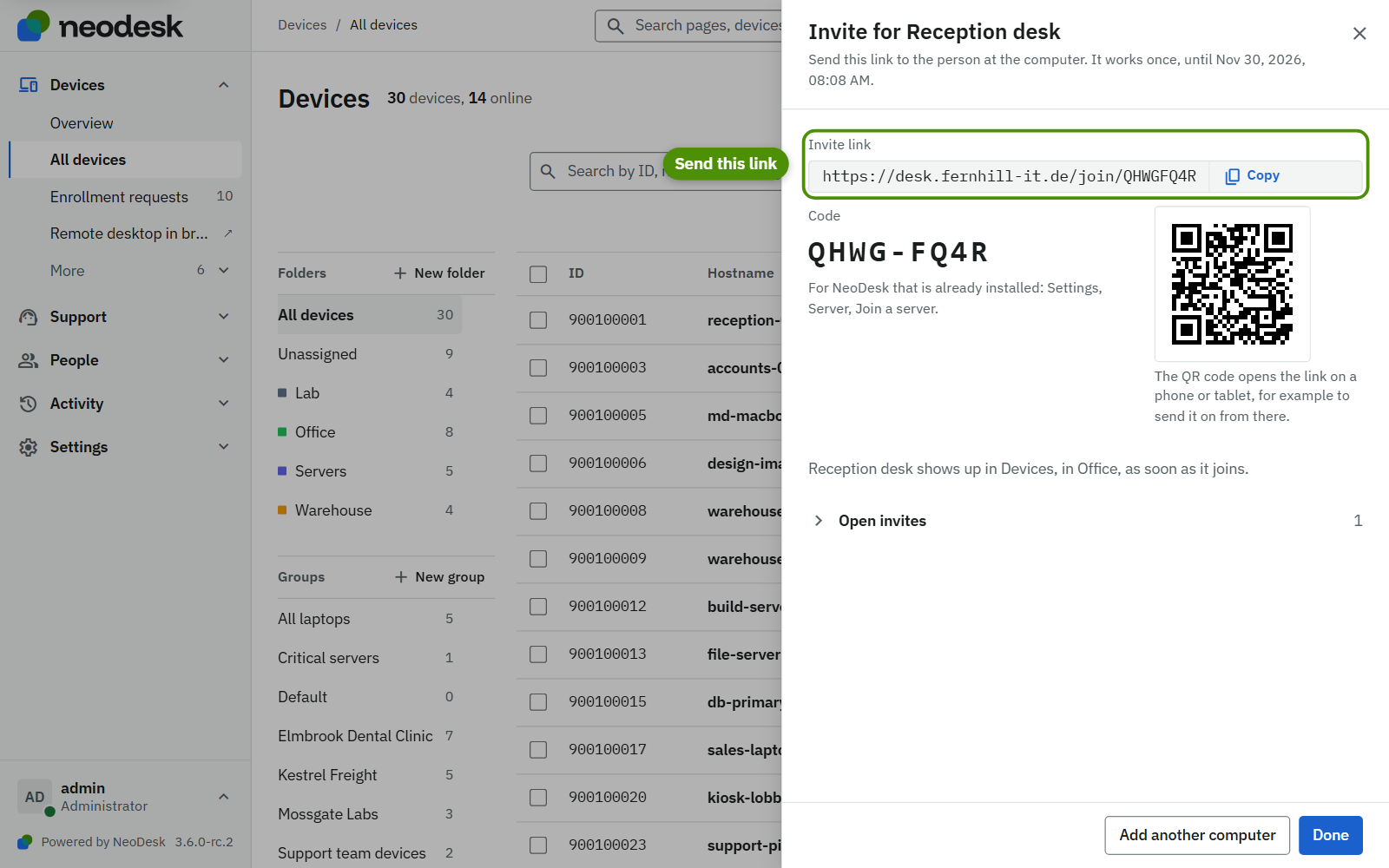
Open Devices, choose Add a computer, pick the customer's folder and send the invite link. The person at the computer installs NeoDesk's client from the link, and the computer shows up in that folder, already approved. For a whole office, let one link be used 25 times and leave the name empty.
Computers that keep the stock RustDesk client get the four values from Client setup on the Overview page, as one config string or through the Windows install script for Intune. See Set up many computers at once.
Help someone right now
A customer calls from a laptop that isn't set up. Click Quick support in the top bar. The console makes a link that works once, for one hour. Copy it, show its QR code, or send it by email once email is set up.
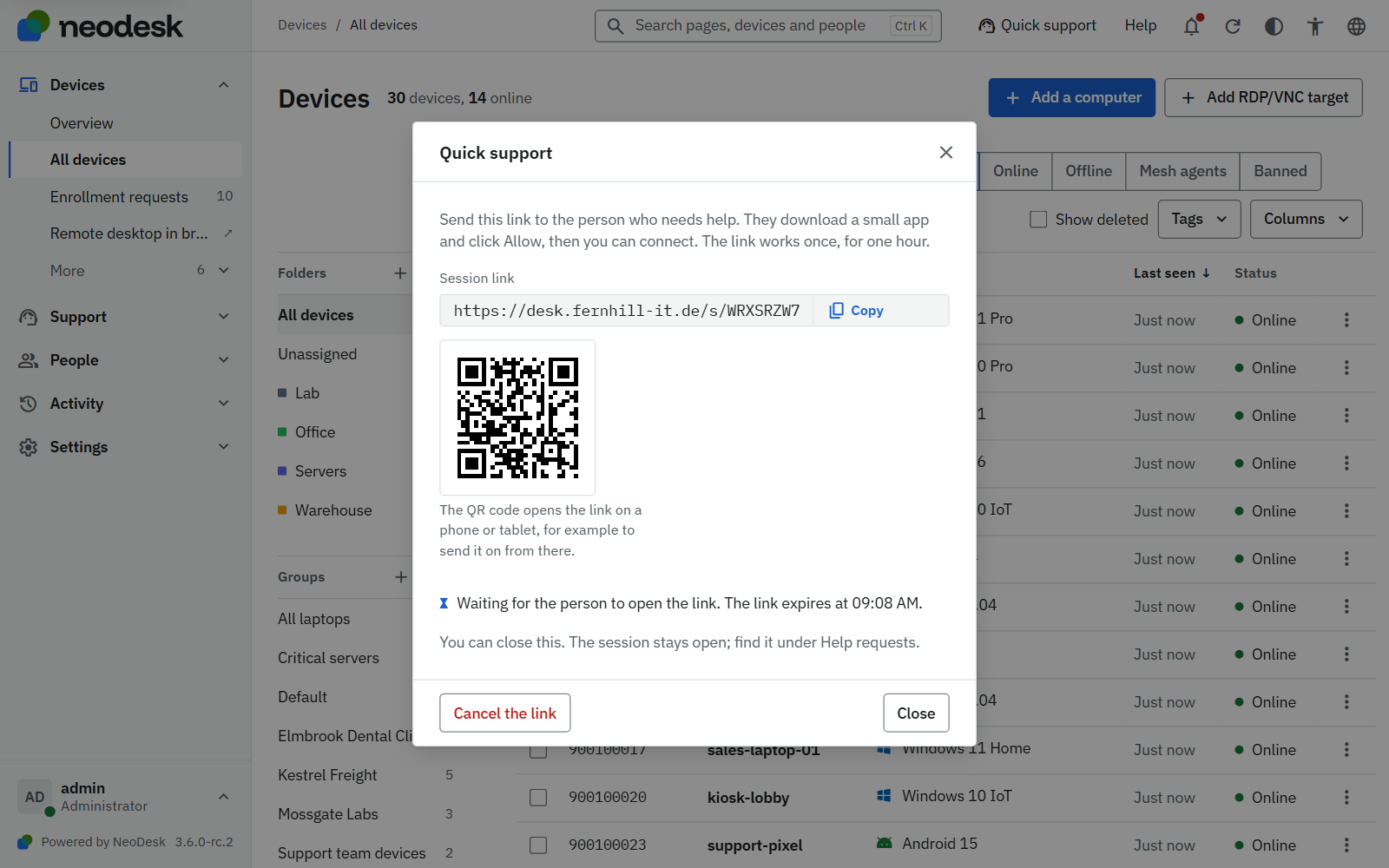
The customer opens the link, downloads NeoDesk Quick Support, checks that it names you and clicks Allow. Connect opens their screen in your browser, without an ID or a password. When they close the app, the session ends. Nothing gets installed. See Quick support.
Reach a computer when nobody is there
For a server or a reception PC you reach at night, set a permanent password in RustDesk on that computer, by hand or with the Windows install script. Store the same password on the computer's contact in the customer's shared address book, so your technicians connect without typing it. The computer decides whether a connection needs the password or someone to accept it; the console has no access schedule per device. See Unattended access.
Wake-on-LAN leaves from the server, so it only reaches computers in the server's own network, not those at a customer's site.
Give technicians only some customers
Give each technician the Remote operator role: they connect, edit device details and create guest links, but don't change users or server settings. Then decide which devices they see:
- Keep each customer's computers in a folder of its own.
- Give the technician that folder under Device access, or put several technicians in a user group and allow the group on the folder.
- Under Settings, General, set Device visibility default to Restricted, so people see only the devices they were given.
Users and roles has the full example.
Let someone else in for a while
When a customer's software vendor needs to look at one machine, make a Guest access link from the device. It works without a console account, for 15 minutes to 24 hours, and only for the devices on the link. Keep the time short: the console can't end a guest link early, and on a RustDesk device the guest gets full control. See Guest access links.
Keep track and bill the work
The Audit log under Activity, Security and audit records who signed in, approved, banned or changed what, with the time and the address. Billable sessions lists the remote sessions that count against a customer's support package, with a filter for each organization, and, when you require work reports, the sessions still waiting for one. See Activity and audit log.
Before you start
- Quick support and Add a computer hand out NeoDesk's client. Your server fetches the signed client releases from GitHub, so it needs access there; see Privacy.
- Sessions in the browser always go through the relay, so they use your server's bandwidth.
- There is no NeoDesk app for phones. Phones use the RustDesk app.
- NeoDesk is free and open source under the AGPL-3.0, for commercial work too. Help is free on the NeoDesk Discord; paid support and help with a setup are available on request at support@neode.sk. See Price and support.