

Chat
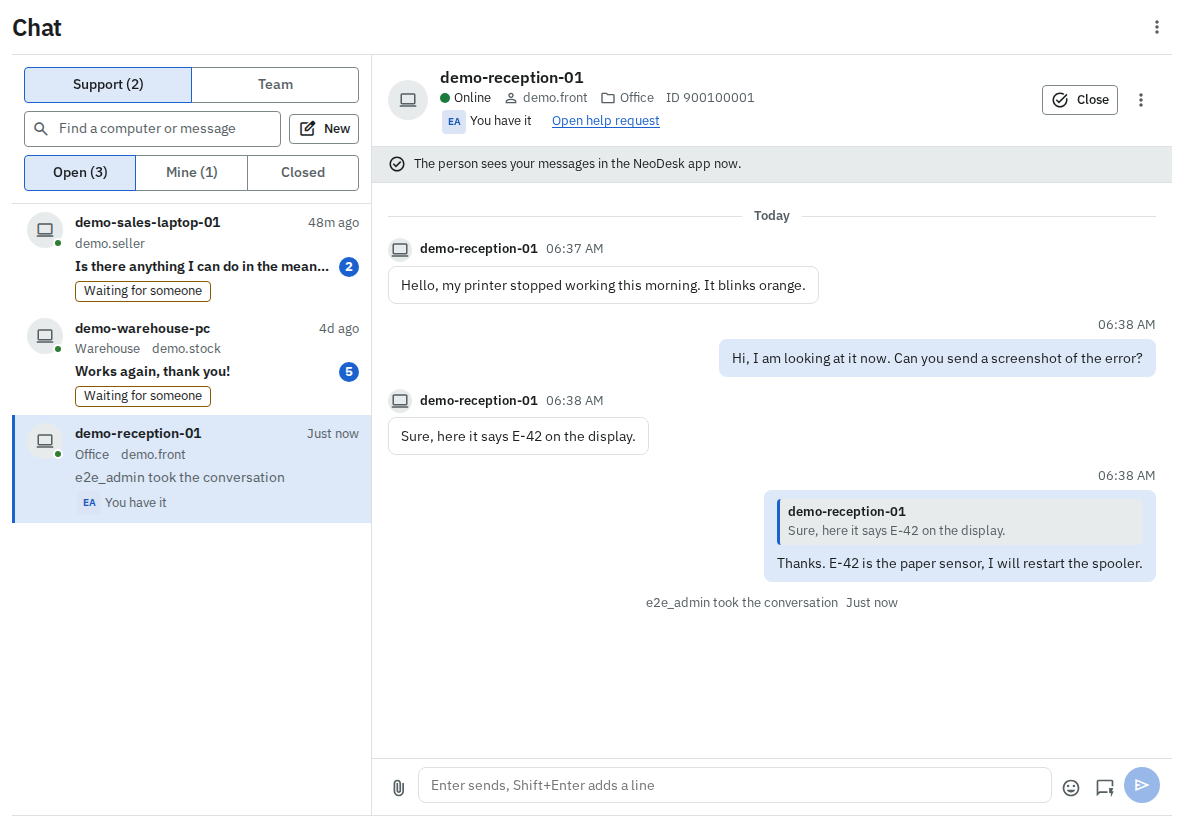
Copy as MarkdownThe chat has two sections. Support holds one conversation per computer, with the person who sits at it. Team holds your conversations with colleagues. Open it under Support, Chat in the sidebar, or from the chat button in the top bar, which opens the same chat in a panel over the page you are on.
Who can use it
Four permissions decide what an account can do in the chat:
| Permission | What it allows | Roles that have it by default |
|---|---|---|
| Support chat | Read and write the conversations with computers the account can see | Super admin, Global admin, Remote operator, Viewer |
| Team chat | Write to colleagues and take part in groups | Super admin, Global admin, Remote operator, Viewer |
| Assign conversations | Take a conversation, hand it to a colleague, close any conversation | Super admin, Global admin, Remote operator |
| Manage canned replies | Keep the canned replies everyone shares | Super admin, Global admin |
An account sees a computer's conversation only when it can see that computer, by the same device access as the device list. You change the permissions of a role on the Permissions page.
Support
The inbox
Support lists the computers that have a conversation. Three filters sort them:
- Open: conversations that are still open, the ones nobody has first.
- Mine: the conversations you have.
- Closed: conversations someone closed.
Each row shows the computer's name, its folder and owner, whether it is online, the newest line and the number of unread messages. A tag says who has the conversation, or Waiting for someone when nobody has it yet.
To write to a computer that has no conversation yet, click New. Write to a computer finds it by name, ID, host name, owner or folder.
Taking and handing on a conversation
The head of a conversation shows the computer, its owner, folder and ID, and who has the conversation. With Assign conversations you can:
- click Take over to take the conversation yourself. The colleague who had it gets a notice.
- choose Hand to and a colleague in the conversation's menu. The list shows only colleagues who can see the computer.
- choose Give back to the inbox so that nobody has it.
Each of these steps shows as a line in the conversation. The menu also has Connect, Open the computer and New ticket.
Closing a conversation
Close asks for an optional note. Colleagues see the note in the conversation; the person at the computer doesn't. Also mark the computer's open help request as resolved is ticked at first: when the computer has an open help request, closing resolves it too.
Open again reopens a closed conversation. A new message from the computer also reopens it and puts it back in the inbox, without anyone assigned.
Help requests and tickets
When a computer that has an open help request writes in the chat, its conversation links to the help request: Open help request in the head leads to Help requests. Help requests has a Chat button for each request from a computer, and the device panel has one for the computer.
New ticket in the conversation's menu opens a new ticket with the computer filled in and the title "Support for" and the computer's name. The conversation then links to the ticket.
Whether the person sees your messages
A line under the head says whether your messages reach someone now:
- "The person sees your messages in the NeoDesk app now." The computer's NeoDesk app holds the chat open.
- "The computer's agent receives your messages." The computer runs an agent that takes chat messages.
- "Not reachable now. They see your messages when the NeoDesk app's chat opens, or in a remote session." The server keeps what you write.
The chat window of the NeoDesk app comes with a client release after 1.5.0-rc.7. With 1.5.0-rc.7 or older, and with a RustDesk client, the person can only read and answer inside a remote session.
The NeoDesk app reaches the chat, and sends and fetches its files, on the server's API port (21121 by default), where it sends its other calls too, or at the console's address. No other port has to be open.
In a remote session
The chat of a remote session in the browser viewer belongs to the computer's conversation, when you have Support chat. What the person writes in the session is stored in the conversation, and what you write to the computer, also from the chat page or the panel, goes into the session as plain text. Replies, edits and reactions don't reach the session, and a file arrives there as "File:" and its name, without a link. Without Support chat, the session's chat stays in the session and isn't stored.
Team
Team lists your conversations with colleagues, and under Colleagues everyone with Team chat you haven't written to yet. A row shows the name, the role and the status. You set your own status under My status in the account menu: Online, Away or Busy.
- A direct conversation reaches only its two people.
- Click New, then Write to colleagues. Pick one colleague and Write for a direct conversation, or several, a Group name and Start group for a group.
- Edit group in a group's head changes its name and members.
Old messages
At its first start the server moves the messages of the earlier chat once. Direct messages go into the conversation of their two people, groups with two or more accounts become groups, and what a computer wrote goes into that computer's conversation. Messages that fit nobody, for example to an account that no longer exists, stay under Old messages in Team. Only admins (Super admin, Administrator, Server admin and Global admin) see them, and nobody can write there.
Writing messages
Enter sends, Shift+Enter adds a line. A message can have up to 4096 characters and up to 10 files of 50 MB each. Add files with the clip button, paste a picture from the clipboard, or drop files on the conversation.
The actions of a message show when you point at it or move the focus to it:
- Reply quotes the message above yours.
- Edit changes your own message for 24 hours after you sent it. Others see "edited" beside it.
- Delete removes your own message at any time. Admins can delete any message. The text and files go for everyone, and "Message deleted" stays in its place.
- Reactions add an emoji under the message. The chat draws its emoji from Twemoji, so they look the same on every system.
- Edit history shows the earlier text of an edited or deleted message, for accounts with View audit logs.
Edits and deletions are also written to the audit log. Links show as they are and open in a new tab; the chat shows no previews of them. Under your newest message, Seen says that the other side has read it. In a support conversation that can also be a colleague who opened the conversation, so it doesn't prove that the person at the computer read it.
Canned replies
The Canned replies button beside the message field inserts the text of a saved reply. Manage canned replies at the end of its list adds, edits and deletes them. A reply is yours alone, or shared with everyone who chats, which needs Manage canned replies.
Finding messages
The search field above the list finds names and messages. In Support it is Find a computer or message, in Team Find a colleague or message. From two characters on, it lists the messages that hold the text under Messages, from the conversations you can read in that section: up to 50, newest first. In Team, admins also find old messages. Click a message to open its conversation at that message.
The panel and notifications
The chat button in the top bar opens the chat in a panel over the page you are on, and Open the chat page takes the same place to the chat page. The button shows how many messages you haven't read, and so do Chat in the sidebar, the Support and Team tabs and the browser tab's title.
The menu at the top right of the chat page and the panel, Chat notifications, has three switches for your account:
- Browser notifications: on by default. The browser asks for permission the first time. You get a notification for a new message unless you are looking at its conversation.
- Sound: off by default. A short sound for a new message, under the same rule.
- Mail when a person waits: on by default; see below.
Mail when someone waits
When a person at a computer waits 15 minutes for an answer, the console sends a mail. It goes to whoever has the conversation. When nobody has it, it goes to everyone with Assign conversations who can see the computer. Only accounts with an email address and Mail when a person waits on get it. The mail names the computer, quotes the first 80 characters of the waiting message and has a button to open the conversation. It uses your server's name, logo and accent colour, and each recipient gets it in the language of their account. There is one mail per wait; an answer from the console ends the wait.
The console sends it through the mail server under Settings, Email.
Chat settings for this server
Accounts with Server configuration find Chat settings for this server in the menu at the top right of the chat page. The top bar search finds it too, for example by "chat with computers".
| Setting | Default | What it does |
|---|---|---|
| Mail when a person waits this many minutes for an answer | 15 | 0 sends no mail. At most 10080 (one week). |
| Quote the start of the waiting message in the mail | On | Off leaves the quote out of the mail. |
| Chat with computers | On | Off: computers can't open the chat, and the console can't reach the people at them by chat. |
When you turn Chat with computers off, the server refuses the chat of every computer and closes the chats that are open. The NeoDesk app shows no chat then. Chat between colleagues keeps working, and Support says that chat with computers is off. Every change of these settings is in the audit log.